
How to Extract Vocals from Audio with Background Noise Using AI Agents
You've got a recording with background music, crowd noise, or several people talking at once — and you just want the clean vocal track. Instead of opening audio software, you can now ask an AI agent to do it for you.
Sonicaura Studio plugs into Claude Code, Cursor, ChatGPT, VS Code, and WorkBuddy through MCP. You describe what you want in plain language, and the agent handles the upload, separation, and retrieval on its own.
This is a full ChatGPT Desktop session.
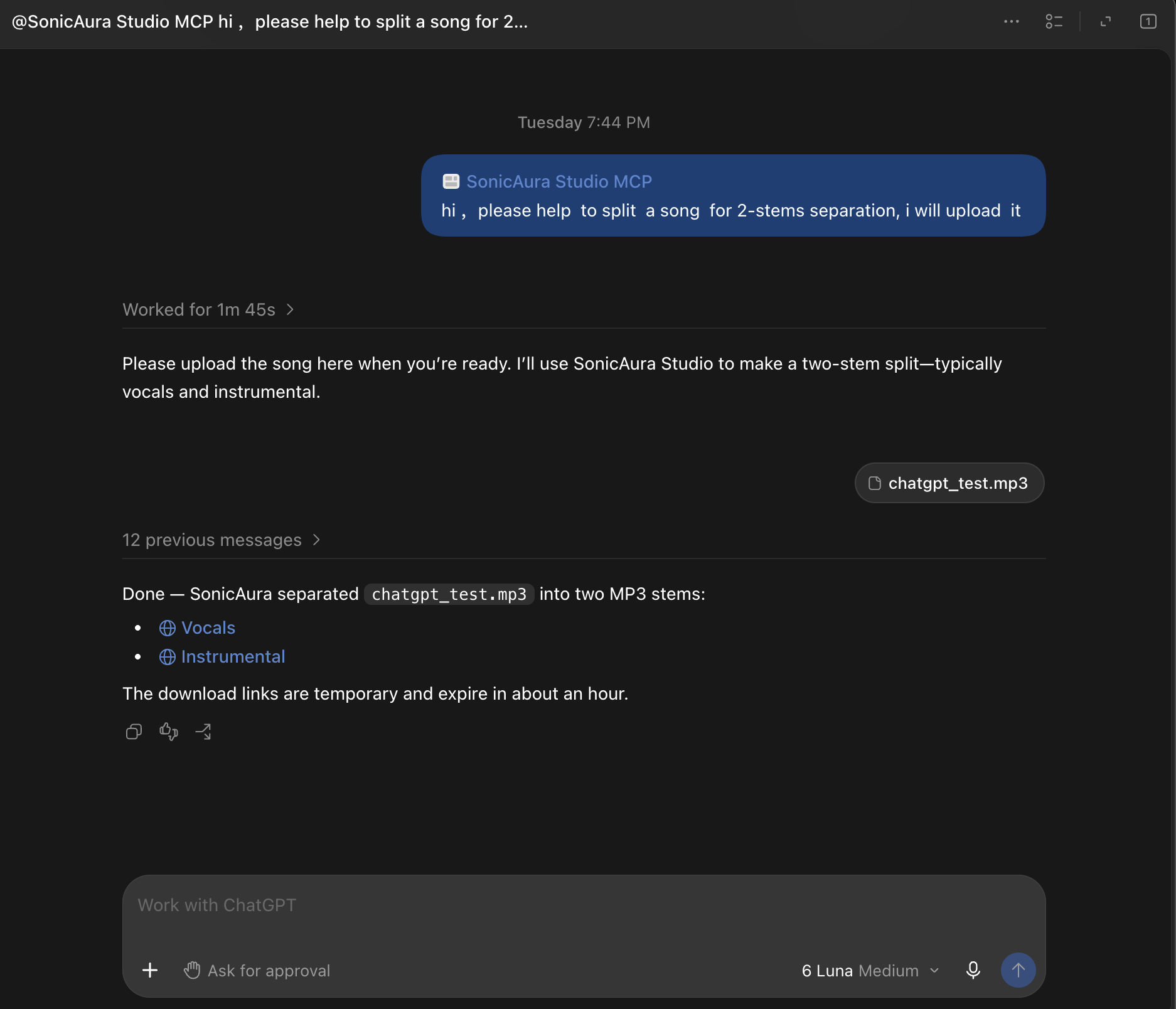
Here's the full workflow. You upload the audio and ask to split it into 2 stems. The Sonicaura MCP agent runs the separation and returns two MP3 stems — Vocals and Instrumental. No audio software, no manual steps.
How it works: Agent + MCP + Sonicaura Studio
MCP is an open protocol that lets AI agents connect to external tools and data sources. Sonicaura Studio wraps its audio processing power into an MCP server, so your agent can upload audio, start a separation task, check progress, and retrieve the results — all on its own.
Say you type something like "Separate the vocals from this podcast clip and remove the background music." The agent takes care of everything: it sends the audio to Sonicaura, submits the separation job, waits for it to finish, and brings back the isolated vocal track. You never have to open audio software.
Sonicaura MCP supports vocal removal, background noise reduction, and stem separation (2, 4, or 6 tracks).
Connecting: OAuth handles it automatically
You don't need to generate or paste an API key. In any AI client that supports OAuth, you just add the MCP server address, and the client walks you through the authorization flow in your browser. Once you approve, you're ready to go — no keys to copy.
To add Sonicaura in Claude Desktop, use this configuration:
{
  "mcpServers": {
    "sonicaura": {
      "url": "https://api.sonicaurastudio.com/mcp"
    }
  }
}
After saving, the first time you use an audio tool, your client will open an OAuth page. Sign in to your Sonicaura account and confirm — that's it.
ChatGPT Desktop is even more direct: go to Plugins, click Add, and choose "Custom MCP Server." Then sign in to Sonicaura via OAuth, and authentication completes automatically. Note that ChatGPT's MCP connection requires a Plus, Pro, Business, Enterprise, or Education account.
Cursor, VS Code, and WorkBuddy support the same OAuth flow. Just add the MCP address in their MCP settings, and the client takes care of the rest.
Which agents support it
Claude Desktop and Claude Code were among the first to support MCP. Add the configuration above in your MCP settings and you're set.
ChatGPT Desktop connects through Plugins → Add → Custom MCP Server, using OAuth sign-in.
Cursor lets you configure the Sonicaura MCP server in settings. Then you can select an audio file path in the editor, type "extract the vocals," and Cursor calls the separation tool and returns the processed file.
VS Code supports MCP through extensions like Copilot Chat or Continue. Sonicaura also lists VS Code as a supported target, so developers can process audio assets right inside their project.
WorkBuddy is Tencent's desktop AI agent, and its open platform supports MCP connections. Sonicaura lists WorkBuddy as a supported client as well.
Step by step
No matter which agent you use, the steps are the same:
Step 1: Add the MCP server address. Add the Sonicaura MCP address in your agent's MCP settings. In Claude Desktop, paste the configuration above. In ChatGPT Desktop, add it through the Plugins interface. In Cursor, VS Code, or WorkBuddy, enter the address in their MCP settings.
Step 2: Complete OAuth authorization. The first time you use an audio tool, your client opens an OAuth page. Sign in to Sonicaura and confirm. No API key to copy.
Step 3: Just describe what you want. For example: "Separate the vocals from this podcast clip and remove the background music." The agent handles uploading, separation, and retrieving the results from start to finish.
Why this matters
The value of MCP is standardization. In the past, every AI tool needed its own custom integration to add audio processing. Now that Sonicaura Studio packages its vocal separation into an MCP server, any MCP-compatible agent — Claude, ChatGPT, Cursor, VS Code, WorkBuddy — can reuse the same tools. And with OAuth handling authentication automatically, getting started takes almost no effort.
For content creators, podcasters, and anyone working with interview recordings, the path from raw audio to clean vocals keeps getting shorter. Your agent isn't just a chat box anymore — it's becoming a single entry point for all kinds of specialized tools.
Ready to try it?
Open the tool in your browser — no install, no signup.
See how MCP connectors extend your AI Agent →