
How to Separate Vocals from a Song Online (4 Methods That Actually Work)
You heard a song, and all you want is the vocal track — to practice singing over it, make a remix, or sample a hook. Or the opposite: you want the instrumental version so you can sing along.
Either way, you need to split a stereo MP3 into separate vocal and instrument tracks. Years ago this required expensive software and hours of work. Today you can do it in your browser in about a minute.
This guide walks through four methods, from the fastest to the most flexible.
First: What "Separating Vocals" Actually Means
When you separate vocals from a song, you're not "removing" the vocal from the mix — you're asking an AI to guess which parts of the audio spectrum belong to a human voice and which belong to instruments. Modern separation models (built on deep learning) do this surprisingly well, but it's never perfect.
What you can expect:
- Vocals isolated: lead vocal comes through clearly, with some bleed from reverb and backing vocals
- Instrumental: drums, bass, guitars, and keyboards separated out, with faint vocal remnants
- Quality depends on the source: studio recordings separate cleanly; live recordings and heavily compressed mixes are harder
Method 1: Online Stem Separator (Fastest)
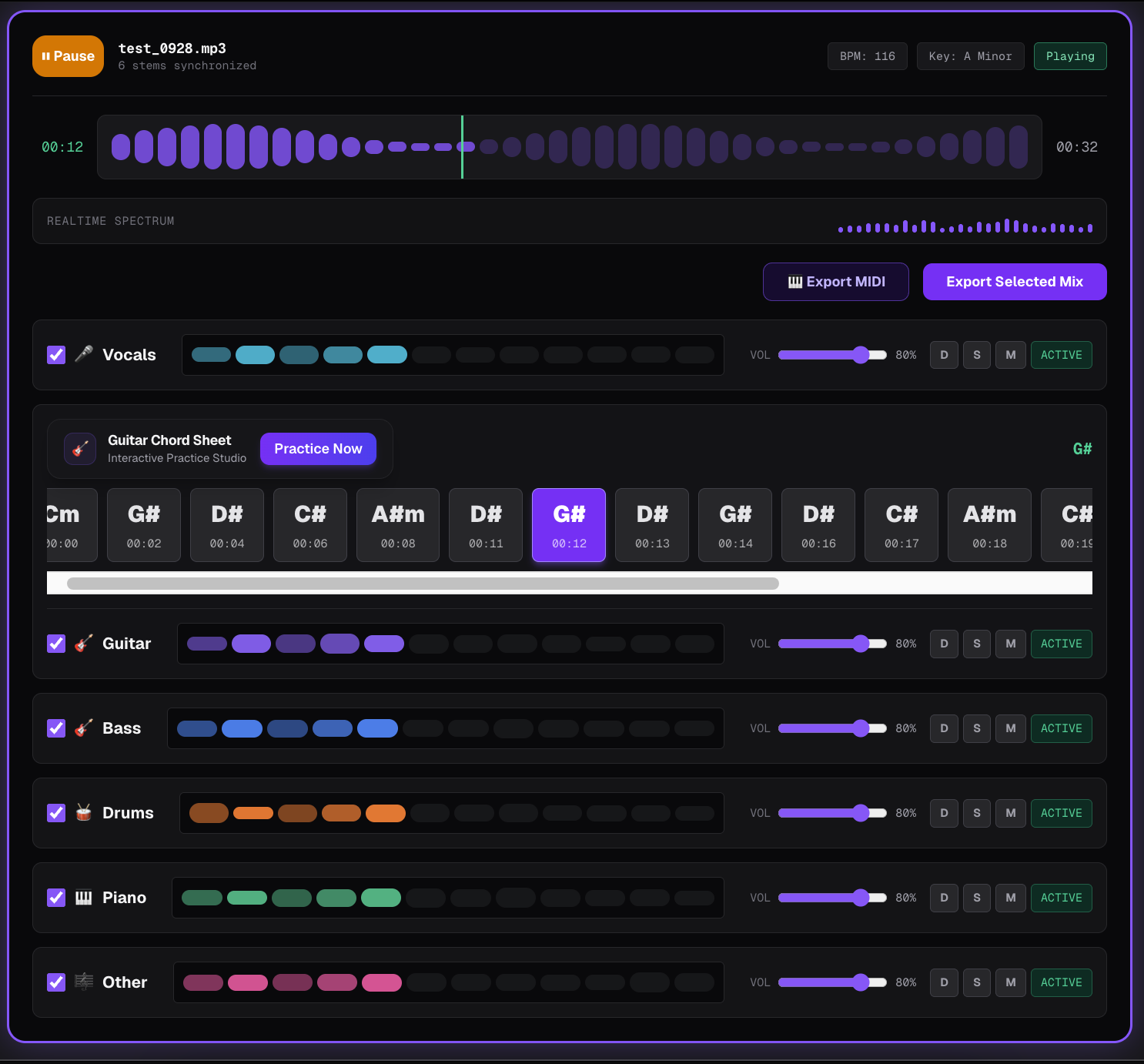
This is the one most people want. You upload a song, pick what to extract, and get back separate audio files.
How it works:
- Upload your audio file (MP3, WAV, M4A, FLAC)
- Choose the separation mode — vocals + instrumental, or full 4-stem (vocals, drums, bass, other)
- The AI model processes the file locally in your browser
- Download the separated tracks
Pros:
- No install, no account
- Runs in your browser — your file never leaves your device
- Works in about the same time as the song length
- Free for most use cases
Cons:
- Maximum file size limits (usually 500 MB)
- Can't tweak individual instrument isolation levels
- Best for one-off songs, not batch processing
This is what the Sonicaura stem splitter does. It uses a pre-trained separation model that runs entirely on your device using WebAssembly — no server upload, no waiting in a queue.
Best for: extracting an instrumental to sing over, isolating a vocal for practice, or getting drum/bass stems for remixing.
Method 2: DAW Plugin (For Production Workflows)
If you're already working in a DAW (Ableton, Logic, FL Studio, Reaper), a native separation plugin integrates directly into your timeline.
Options:
- iZotope RX: industry standard, very clean isolation but expensive
- UVR (Ultimate Vocal Remover): free desktop app with multiple open-source models
- RX 10 / SpectraLayers: for forensic-level separation
Pros:
- Tight DAW integration — drag a track right onto your timeline
- More control over isolation strength and artifacts
- Batch process entire folders
Cons:
- Expensive (RX costs hundreds of dollars)
- Heavy to install (several GB)
- Steeper learning curve
Best for: producers who need stems as part of a regular workflow.
Method 3: Karaoke Mode / Center Channel Removal
The oldest trick: vocals are usually centered in the stereo field. If you invert one channel and cancel them out, the center (lead vocal) disappears.
How to do it:
- In any audio editor, duplicate the track
- Flip the phase on one copy (invert polarity)
- The center-panned vocal cancels out
Pros:
- Zero processing power, instant
- Completely free, works in any editor
Cons:
- Also removes kick drum and bass (usually center-panned too)
- Sounds thin and hollow
- Doesn't work on modern stereo-widened mixes
Best for: quick-and-dirty karaoke when nothing else is available. Not recommended for anything you want to sound good.
Method 4: AI Desktop Apps (Power Users)
Open-source models like Demucs, MDX-Net, and Spleeter are the engines behind most online splitters. You can run them locally on your own machine for free.
Options:
- Ultimate Vocal Remover (UVR5): free desktop GUI, includes Demucs and MDX models
- Demucs command line: for developers, runs on GPU
- Lalal.ai / Moises: paid web services with advanced models
Pros:
- Free and open source
- Runs on your own GPU (faster for long files)
- Access to the latest models
Cons:
- Setup requires technical comfort
- GPU recommended (CPU works but is slow)
- No nice UI if you use the command line
Best for: batch processing or power users who want the best model quality.
Which Method Should You Use?
- Just want an instrumental fast? → Method 1 (online separator)
- Already in a DAW and need stems often? → Method 2 (RX or UVR)
- Need free desktop processing for many files? → Method 4 (UVR5)
- Desperate and have no other option? → Method 3 (center cancellation), but know it'll sound rough
Most people just need Method 1. Upload a song, get back the vocal and instrumental, done.
Tips for Better Separation Results
- Use the highest quality source you have. A 320 kbps MP3 or lossless WAV gives the AI more to work with than a 128 kbps YouTube rip.
- Try different models if the default doesn't sound right. Some models handle EDM better; others are tuned for acoustic music.
- Don't expect perfect isolation. There will always be a little reverb tail or backing vocal bleed. For practice purposes, it's fine.
- If the vocal has a lot of effects (autotune, doubling, delay), separation gets harder — the AI can't always tell where the voice ends and the effect begins.
The Fastest Option
If you just want to split a song right now — to practice singing, make a karaoke track, or extract an instrumental — the free online stem splitter does it in your browser. Upload your file, pick vocal + instrumental, and download the result. No install, no account, and your file never leaves your device.
Frequently Asked Questions
Can I separate vocals from any song?
Almost any modern recording. Studio tracks separate cleanly. Live recordings, heavily compressed mixes, and songs with wide stereo effects are harder but still usually work.
Is vocal separation legal?
Separating vocals for personal practice, remixing, or sampling is generally fine. Distributing the separated stems or using them in released music without permission may violate copyright — check your local laws.
What's the best file format to upload?
Lossless formats (WAV, FLAC) give the AI more detail to work with. MP3 at 320 kbps is the minimum. Lower bitrates result in more artifacts.
How long does it take?
About as long as the song itself. A 3-minute track processes in roughly 1–2 minutes, depending on your device.
Are my uploaded files safe?
With a browser-based tool like Sonicaura, yes. The separation runs locally on your device using WebAssembly — the file never gets uploaded to a server.