
ChatGPT Desktop MCP Setup for Audio Tools - Split, Denoise, Reverb
If you already live inside ChatGPT, you don't need a browser tab to split a song into stems, remove background noise from a podcast recording, or add reverb to a dry vocal. Sonicaura Studio exposes all three AI audio tools through the Model Context Protocol (MCP), which means ChatGPT Desktop can call them on your behalf.
This guide walks through the full setup — from generating your API key to running your first audio task from inside the chat. It takes about five minutes.
What you can do once it's connected
Once Sonicaura Studio is registered as an MCP server in ChatGPT Desktop, you can ask in plain language:
- "Split this MP3 into 6 stems and save them next to the source file."
- "Remove the background noise from episode-14.wav."
- "Add bathroom reverb to this vocal take and give me the download link."
ChatGPT calls the right tool, waits for the result, and returns a signed download URL. No interface, no drag-and-drop, no context switch.
Why use MCP instead of the web interface
The web interface at https://www.sonicaurastudio.com/tools is the fastest way to try the tools. MCP is for when you want to work without leaving your AI client:
- Single quick job — the web interface is faster, but MCP works fine.
- Batch of 20 files — the web interface is manual each time, MCP is one prompt.
- Part of a scripted workflow — the web interface cannot do it, MCP can.
- Away from a browser — the web interface cannot do it, MCP can.
- Uses the same credits — both yes.
Both routes use the same credit balance. MCP does not have separate pricing.
Prerequisites
Before you start, make sure you have:
- The ChatGPT desktop app, latest version. MCP support is not available on the web version.
- A ChatGPT Plus, Pro, Business, Enterprise, or Education account. Custom MCP servers are not exposed to free accounts.
- A Sonicaura Studio account with at least one credit. New accounts get 2 free credits on signup — no credit card required.
- Your MCP API key, which you can generate at https://www.sonicaurastudio.com/usercenter/mcp. If you sign in via OAuth inside ChatGPT, your key is generated automatically.
Step 1 — Generate your MCP API key (or let OAuth do it)
Go to the MCP API Key page inside your User Center at https://www.sonicaurastudio.com/usercenter/mcp. If you don't have a key yet, click Generate API Key. You'll get a string that starts with sk_live_ — copy it somewhere safe.
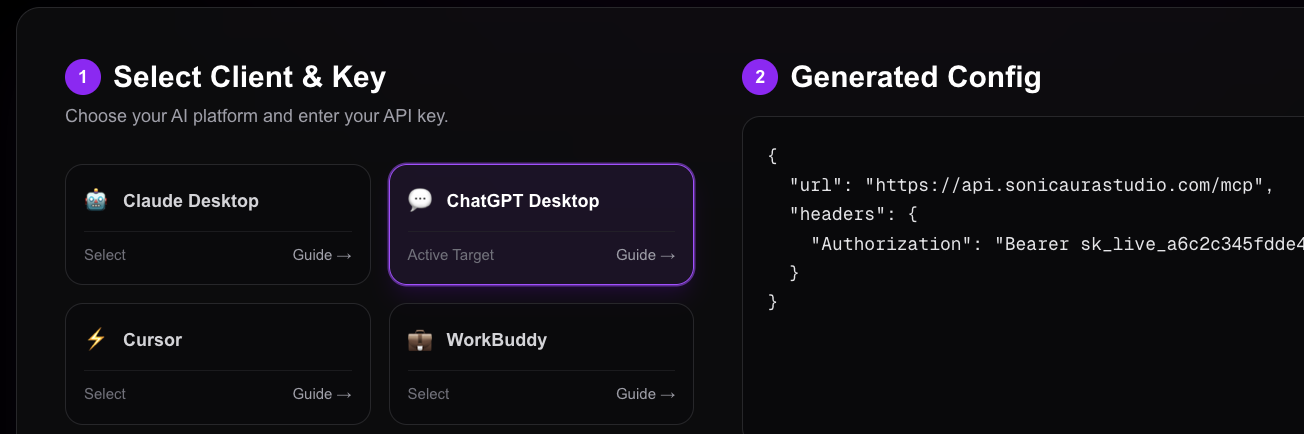 Treat this key like a password. Anyone with the key can spend your credits.
If you prefer, you can skip this step and use OAuth when adding the MCP server in ChatGPT — your API key will be created automatically on first sign-in.
Step 2 — Add the MCP server in ChatGPT Desktop
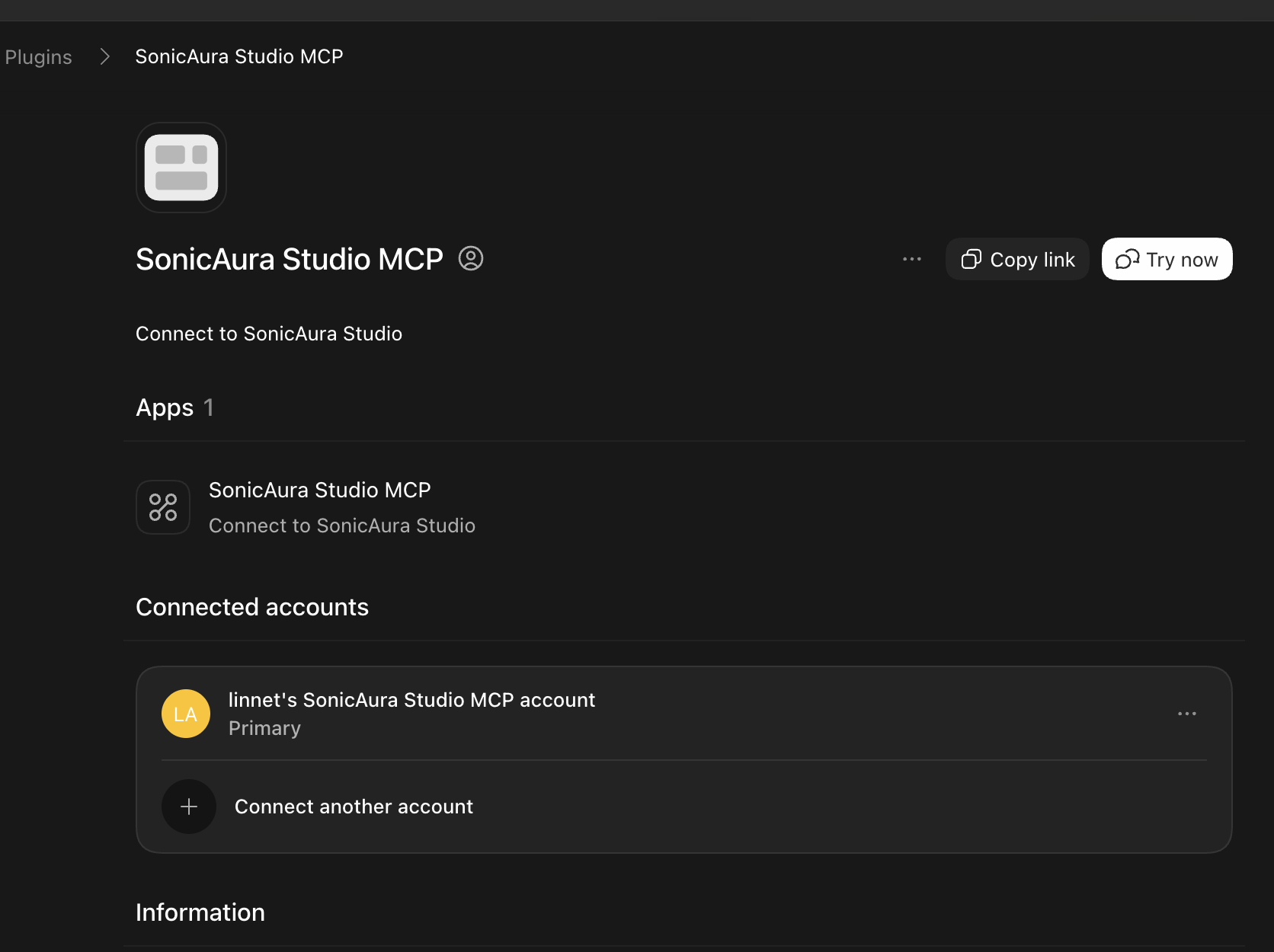
Open the ChatGPT desktop app and go to Plugins in the sidebar. Click + Add, then choose Custom MCP Server.
Fill in the fields:
- Name:
SonicAura Studio MCP - Description:
Connect to SonicAura Studio for AI stem separation, denoise, and reverb. - Server URL:
https://api.sonicaurastudio.com/mcp - Authentication: choose OAuth to sign in with your SonicAura account, or No authentication if you prefer to paste the API key as a header instead.
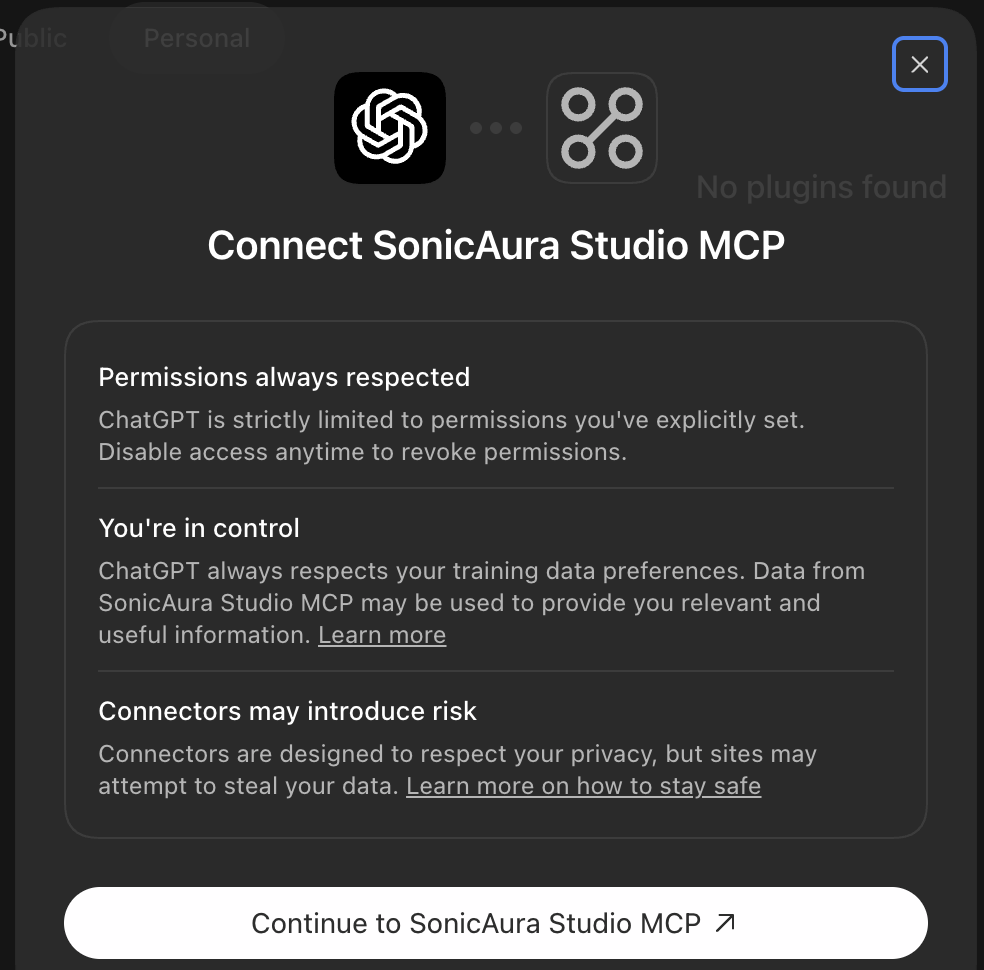
If you're using the API key route, add the following header:
Authorization: Bearer sk_live_your_key_here
Replace sk_live_your_key_here with the key from Step 1.
Step 3 — Save and verify the connection
Save the MCP server configuration. Then start a new chat, open the + menu, and enable SonicAura Studio MCP for that conversation.
Type a short verification prompt:
@SonicAura check my service status and credits.
ChatGPT should call check_service_status and get_my_credits, then reply with your available credits and service status.
If you see an authentication error, the most common causes are:
- A typo in the Authorization header — it must be exactly
Bearer sk_live_...with a space afterBearer. - An expired or regenerated key — if you regenerated the key on the website, the old one stops working immediately.
- A stale ChatGPT cache — fully quit the app (not just close the window) and reopen it.
- A free-plan account — custom MCP servers require Plus or above.
Step 4 — Run your first audio task
With the connection live, open a chat and try a prompt like:
Split song.mp3 into 2 stems and send me the download links.
ChatGPT will:
- Call
get_upload_urlto get a presigned upload URL. - Upload the file to Sonicaura's private R2 storage.
- Call
process_audiowithtask_type: "4stems". - Poll
check_task_statusuntil the result is ready. - Return signed download URLs for
vocals.mp3,drums.mp3,bass.mp3andother.mp3.
Because process_audio is a write-type tool, ChatGPT will ask for your approval before running it. You can click Always allow on a per-tool basis if you trust the server.
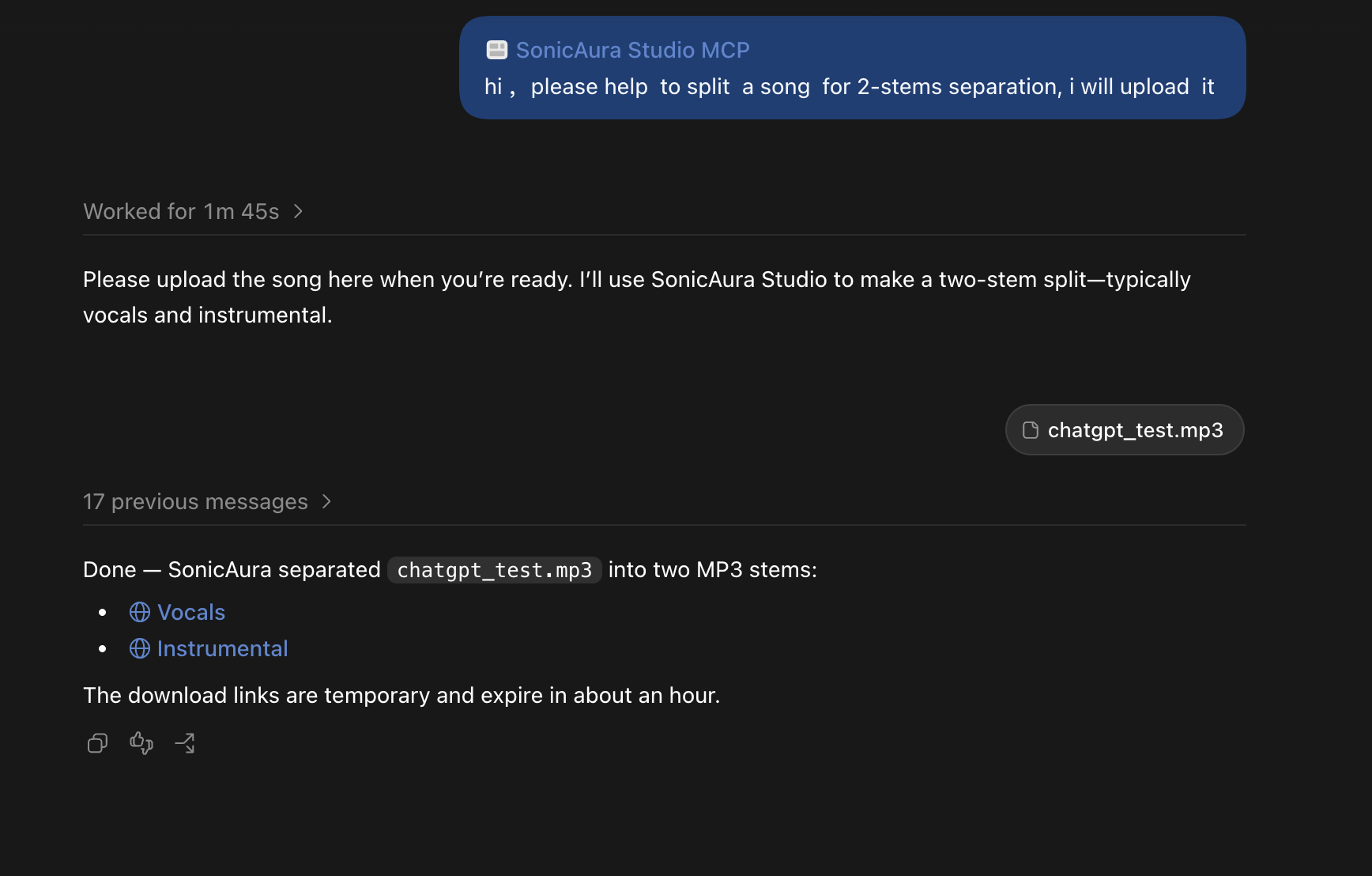
One credit is deducted per task. Files up to 500 MB are supported.
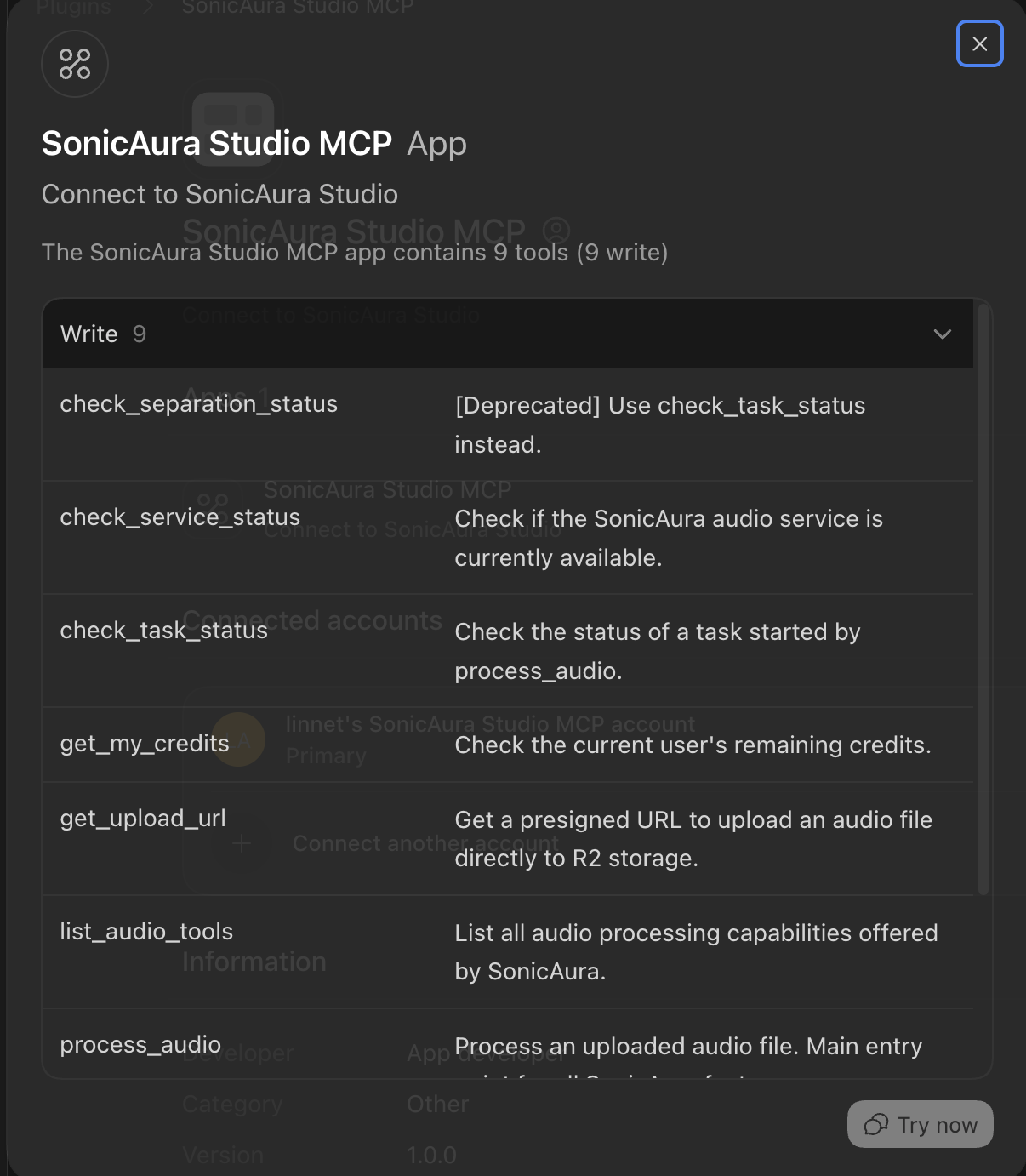
What tools does Sonicaura Studio expose over MCP?
The MCP server exposes five public tools:
list_audio_tools— Discover all available capabilities and their parameters.get_upload_url— Get a presigned URL for uploading a file to R2.upload_audio— Upload small files (under 1 MB) directly.process_audio— Submit a task (stem separation, denoise, or reverb).check_task_status— Poll for completion and get signed download URLs.
The task types you can pass to process_audio are:
2stems— vocals + instrumental.4stems— vocals, drums, bass, other.6stems— vocals, guitar, bass, drums, piano, other.music_denoise— noise removal that preserves music.denoise— aggressive speech cleanup for podcasts and interviews.reverb— one of five spatial presets:vocal_booth,studio_room,bathroom,concert_hall,church.
Common questions
Is MCP support free?
MCP itself is free — it's an open protocol. Using Sonicaura Studio's tools still costs credits, exactly as it does on the web. One credit per AI task, and credits never expire.
Do I need a paid ChatGPT plan?
Yes. Custom MCP servers in ChatGPT Desktop require a Plus, Pro, Business, Enterprise, or Education account. Free accounts may not see the "Custom MCP Server" option in the Plugins menu.
Do I need to install an SDK?
No. The MCP server is a remote HTTP endpoint. You just need an MCP-compatible client: ChatGPT Desktop, Claude Desktop, Cursor, VS Code with an MCP extension, or any other client that supports the protocol.
Can I use this in Claude Desktop or Cursor too?
Yes. The same MCP server URL and API key work in any MCP-compatible client. See the MCP integration overview at https://www.sonicaurastudio.com/mcp for client-specific instructions.
What audio formats are supported?
The AI tools accept MP3, WAV, FLAC, M4A and MP4 — up to 500 MB per file. Video files are accepted and the audio track is extracted automatically.
Where are my files stored?
Files are uploaded to private object storage (Cloudflare R2), processed on our servers, and returned as signed download links. They are never shared with third parties, and signed links expire after one hour.
What happens if a task fails?
If the underlying model fails, the credit is not consumed — the tool returns an error, and you can retry. If the failure happens after the credit has been deducted, the credit is refunded automatically. If you believe a credit was consumed incorrectly, contact us via the contact page at https://www.sonicaurastudio.com/contact.
Tips for using MCP audio tools inside ChatGPT
A few patterns that make the setup more useful day to day:
- Chain separation and denoise. Ask ChatGPT to separate a song, then run
music_denoiseon the vocal stem. It's two calls, and the assistant will handle the sequencing. - Use
list_audio_toolsfirst. If you're not sure whichtask_typeto use, ask ChatGPT to list the available tools. It returns descriptions and typical processing times. - Poll with backoff.
check_task_statusreturnsprocessinguntil the result is ready. Typical timings: 15 seconds for reverb, 30 seconds for denoise, 60–120 seconds for stem separation. - Batch in loops. Since each call is independent, you can ask ChatGPT to loop over a folder of files and process them one by one. Each iteration uses one credit.
- Enable Always allow for read-only tools. Tools like
check_task_statusandget_my_creditsare safe to auto-approve; keep write tools on manual approval.
Next steps
If you've completed the setup above, you can now run AI audio tasks directly from ChatGPT Desktop. The next things to explore:
- MCP integration overview at https://www.sonicaurastudio.com/mcp — how MCP works across all supported clients.
- Claude Desktop setup at https://www.sonicaurastudio.com/mcp/claude — if you also use Claude Desktop.
- Cursor setup at https://www.sonicaurastudio.com/mcp/cursor — if you also use Cursor.
- VS Code setup at https://www.sonicaurastudio.com/mcp/vscode — if you also use VS Code.
- AI Stem Separator at https://www.sonicaurastudio.com/tools/vocal-separation — the flagship audio tool.
- AI Sound Denoise at https://www.sonicaurastudio.com/tools/ai-denoise — remove background noise with AI.
- AI Sound Reverb at https://www.sonicaurastudio.com/tools/ai-reverb — five spatial reverb presets in one click.
To generate or regenerate your MCP API key, visit the MCP API Key page at https://www.sonicaurastudio.com/usercenter/mcp.