
How to Mix Voice & Background Music for a Podcast (Without Sounding Like an Amateur)
If you've ever tried to add background music (BGM) to your podcast, you know the struggle. You turn the music up, and suddenly your voice sounds muffled. You turn it down, and the music disappears entirely.
Getting that perfect balance—where the music sets the mood but the host remains crystal clear—is one of the hardest parts of podcast editing. Professional audio engineers spend hours manually adjusting volume levels (a process called "ducking") so the music dips every time someone speaks.
But you don't need a degree in audio engineering to sound like a pro. With Sonicaura Studio's Voice & BGM Mixer, you can achieve a broadcast-ready mix in just a few clicks.
Here is exactly how to do it.
Why is Mixing Voice and Music So Hard?
Human ears are incredibly sensitive to speech. If a background track has a lot of bass or complex melodies, it masks the frequencies of the human voice.
To fix this, audio engineers use a technique called Sidechain Compression or Ducking. When the voice track hits a certain volume, the music track automatically lowers its volume. When the host stops talking, the music comes back up.
Doing this manually takes time and precision. Doing it with AI takes seconds.
Step-by-Step: How to Mix with AI Ducking
Our workspace is designed to do the heavy lifting for you. Here is how to get the perfect mix:
1. Upload Your Tracks
First, head over to the Voice & BGM Mixer. You have two options:
- Upload your tracks: Drag and drop your main voice recording (e.g.,
demo_vocals.mp3) and your background music. - Generate with AI: Don't have a royalty-free track handy? Click "Or Generate with AI" to create a custom background track right inside the tool.
2. Fine-Tune Your Settings
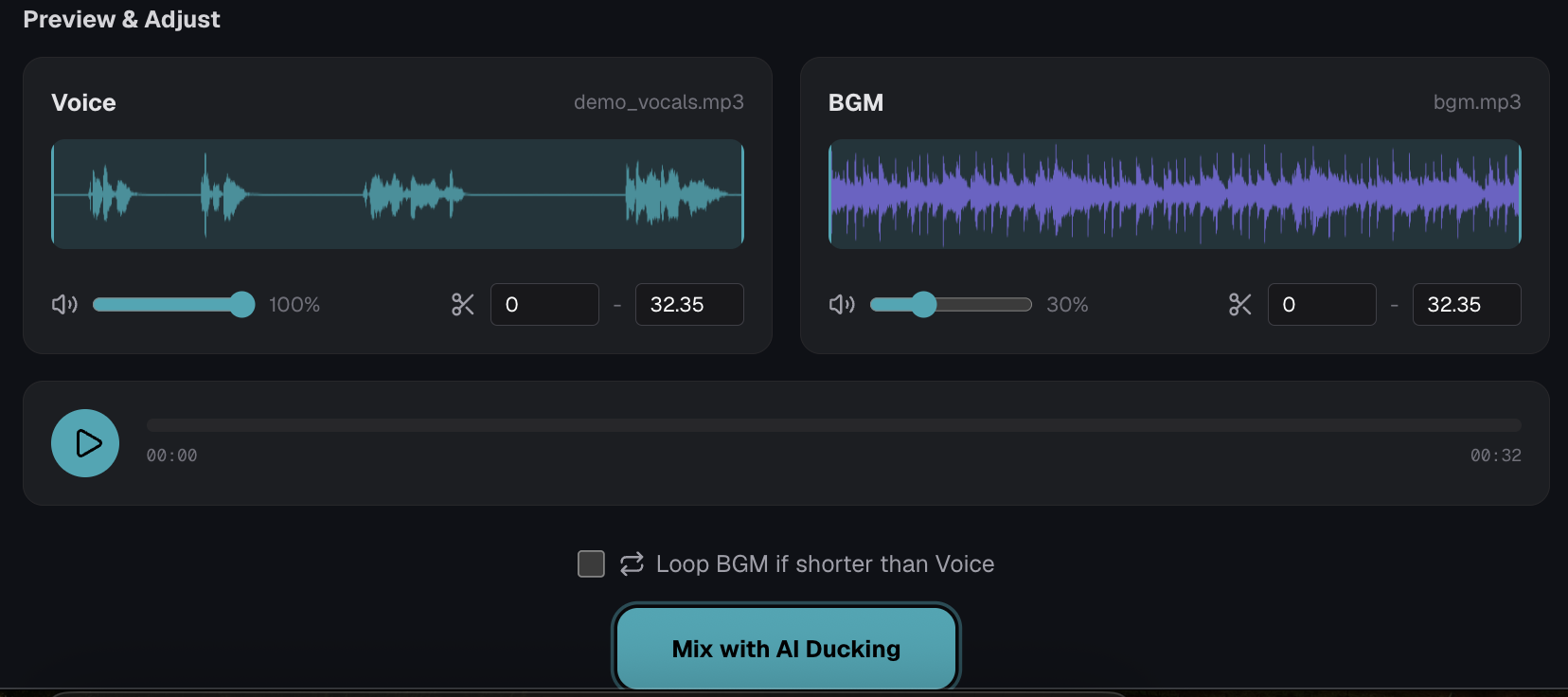
Once your tracks are loaded, you'll see the Preview & Adjust area.
- BGM Volume: Set your overall background music level. Usually, 20% to 30% is a safe starting point.
- Trim and Loop: If your BGM is shorter than your voice track, simply check the "Loop BGM if shorter than Voice" box. The tool will seamlessly loop the music to match the length of your podcast.
3. Click "Mix with AI Ducking"
This is where the magic happens. Instead of manually riding the volume faders, click the Mix with AI Ducking button.
The AI analyzes your voice track and automatically lowers the BGM whenever you are speaking, while smoothly bringing it back up during pauses.
What Makes This Mixer Different?
- Save to Episodes: Keep your projects organized. You can save your mixes directly to specific podcast episodes using the dropdown at the top.
- Broadcast-Ready Output: The final file is balanced to industry standards, meaning it's ready to be uploaded straight to Spotify, Apple Podcasts, or YouTube.
- No Software Installation: It's all browser-based. No downloading heavy DAWs or installing plugins.
Stop Settling for Bad Audio
Your podcast's audio quality is the first thing listeners judge. If they have to strain to hear you over a loud music bed, they will click away.
Ready to give your podcast a professional, studio-quality sound?
👉 Try the Voice & BGM Mixer Now and mix your first track in under 60 seconds.
Ready to try it?
Open the tool in your browser — no install, no signup.
Try the Voice & BGM Mixer for Free →