
How to Use Chord Query and Chord Diagrams
Learning guitar chords forms the foundation for every guitarist, whether you are just starting out or refining advanced playing techniques. Many learners struggle to find correct finger positions, explore alternative voicings, or hear exactly how a chord should sound. This is where Chord Query paired with interactive chord diagrams can drastically improve your practice efficiency.
What Is Chord Query and Chord Diagrams?
Chord Query is a practical guitar chord finder built for real practice habits. Instead of flipping through thick chord books, you can input any chord symbol such as Cmaj7, Bm or G7sus4. The tool instantly returns multiple playable fingerings across the guitar fretboard.
Common capabilities include:
- Search chords by standard chord notation
- Display multiple alternative voicings for one chord
- Visual chord‑diagram rendering for each result
- Built‑in audio playback to listen to chord tones
- Support for different tunings and capo positions
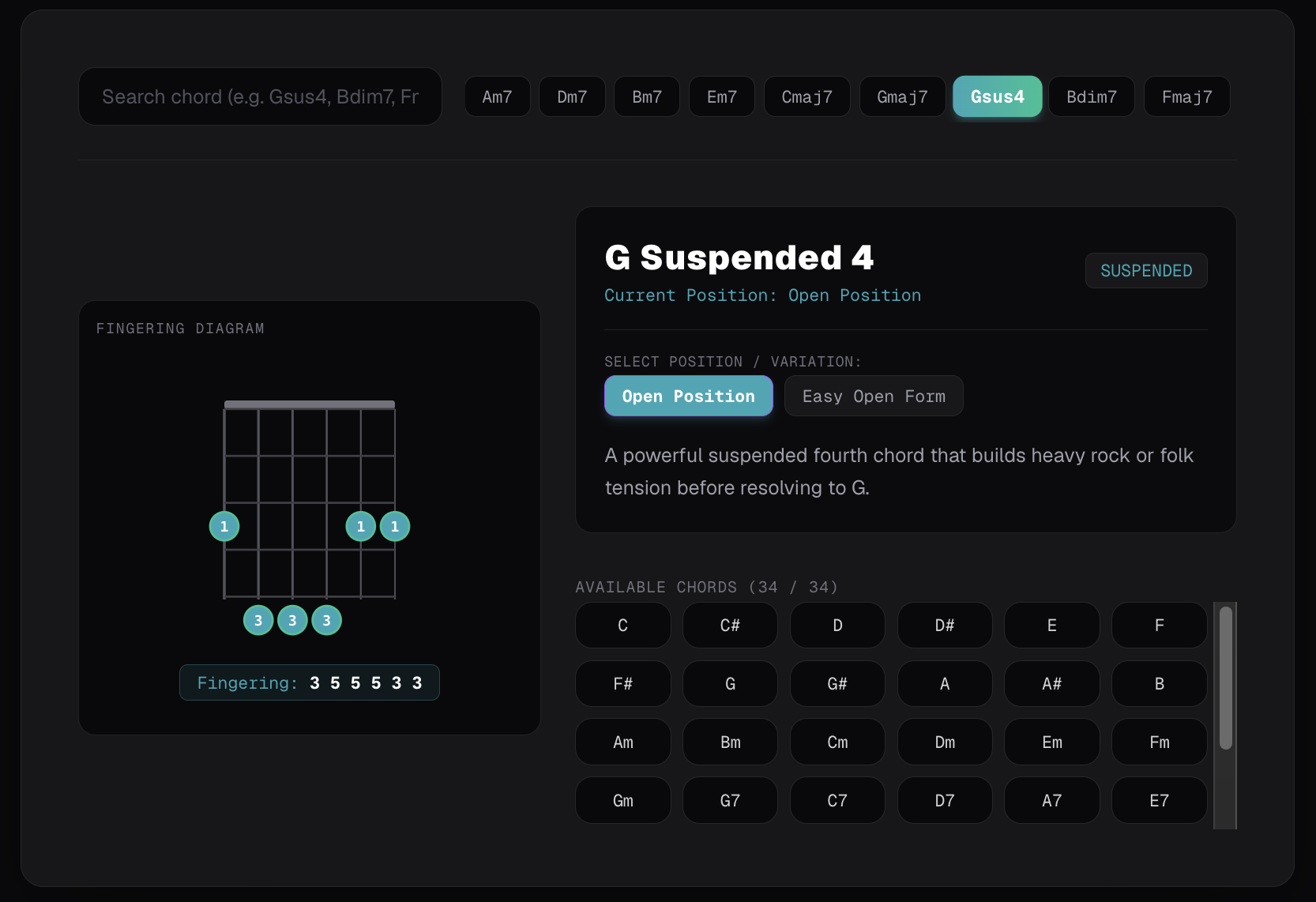
Above screenshot: The Chord Query interface showing search input area and rendered chord‑diagram previews.
Understanding Guitar Chord Query and Chord Diagrams
A chord diagram is a simplified visual representation of your guitar fretboard, telling you exactly where to place each finger.
Basic diagram symbols:
- Vertical lines → Six guitar strings (low E on far‑left, high E on far‑right)
- Horizontal lines → Metal fret bars on the guitar neck
- Dots → Finger press positions; numbers indicate which finger to use (
1=index,2=middle,3=ring,4=pinky,T=thumb) Oabove string → Play open string without frettingXabove string → Mute / skip this string, do not strum it- Thick top bar → The guitar nut for open‑position chords
- A number to the side of the diagram (e.g.
5fr) → The shape starts at that fret, not at the nut
Beginners often misread these charts. With interactive diagrams from Chord Query, you no longer need to guess: each fingering is rendered clearly alongside search results.
Worked example: reading a Cmaj7 diagram
Take Cmaj7 in open position. Reading the diagram left to right:
- Low E string has an
X→ do not strum it. - A string, 3rd fret, finger
1→ the root note C. - D string, 2nd fret, finger
2→ E. - G string stays open (
O) → G. - B string, 1st fret, finger
1? No — B string open? In the common open Cmaj7 shape (x32000), the B and high E strings both ring open.
The full shape is x32000. Strum from the A string down, and every note of the chord — C, E, G, B — rings cleanly. Query the same chord in the tool and you will also see movable barre shapes, such as the compact root‑5 voicing at the 3rd fret (x3545x), for when you need a brighter sound higher up the neck.
How Guitarists Actually Search for Chords
Real players rarely search the way chord books are organized. Here are the lookup habits the tool is built around:
- Plain chord names. Most players type exactly what they see in a song sheet:
C,G,Am,Em. Type the letter and get the diagram immediately — no theory required. - "Easy version" hunting. Barre chords like
BmandFare the classic beginner wall. Instead of searching "Bm chord no barre" on a forum, queryBmand browse the voicing list for a partial‑barre or open‑position shape with fewer fingers. - Slash chords from songbooks. When a chart shows
C/GorD/F#, the bass note matters. Type the full symbol — the tool returns fingerings with the correct bass, so your strum sounds like the recording. - Colorful chords by symbol.
Cadd9,Asus2,G7sus4— type the full symbol instead of guessing which fingers to add. This is the fastest way to move beyond open‑position basics. - Capo thinking in shapes. Players who use a capo often think in shapes ("G shape with capo 2 = A"). Query the real chord name, then pick a movable shape you can slide up the neck.
- Alternate tunings. Drop D power chords, DADGAD voicings, and other tunings are supported, so the diagram always matches the guitar in your hands.
How To Use Chord Query In Your Daily Guitar Practice
1. Look up unfamiliar chords
When you encounter an unknown chord in sheet music or song tabs, type its name into Chord Query. Review the diagrams and pick the fingering that fits your hand size and skill level.
2. Explore alternative voicings
One chord can be played in dozens of positions along the neck. Chord Query lists these variations, helping you find smoother chord transitions for song progressions.
3. Combine visual diagram with audio playback
Seeing the finger shape is only half of learning. Use the built‑in guitar MIDI player to hear the chord sound. Compare whether your real‑guitar strum matches the reference audio.
4. Practice chord switching
Save your frequently‑used chord shapes. Re‑open diagrams while practicing chord changes to reduce lookup friction during practice sessions.
Who Can Benefit From This Tool?
- Absolute beginners: Quickly learn basic open chords without confusing paper charts
- Intermediate players: Discover barre‑chord shapes and higher‑register voicings
- Songwriters: Experiment with extended chords like 9ths, 11ths, and altered chords
- Music learners: Connect chord notation, visual fingering, and real audio reference all in one workspace
Frequently Asked Questions
What do the numbers on a chord diagram mean?
The numbers tell you which finger to fret with: 1 = index, 2 = middle, 3 = ring, 4 = pinky, and T = thumb. The dots show where to press on the fretboard; the numbers show which finger to use, so you can build the shape quickly without guessing.
What do X and O mean on a chord diagram?
An O above a string means play that string open — strum it without pressing any fret. An X means mute that string or skip it entirely so it does not ring out. Reading these two markers correctly is the fastest way to fix a buzzing or muddy‑sounding chord.
What is the difference between a chord diagram and guitar tab?
A chord diagram is a snapshot of one chord shape — six strings and a few frets at a single moment. Guitar tablature shows a melody or riff over time, read left to right. Diagrams tell you where to put your fingers for one chord; tabs tell you which notes to play in sequence.
How can I play Bm without a barre chord?
Query Bm in Chord Query and browse the voicing list. Besides the standard 2nd‑fret barre shape, you will find easier partial‑barre and open‑position alternatives that use fewer fingers — ideal for beginners and for fast chord changes in songs.
Can I look up slash chords, sus chords, or use a capo?
Yes. Type any standard symbol — slash chords like C/G or D/F#, suspended chords like G7sus4, or added‑note chords like Cadd9 — and the tool returns playable fingerings. Movable shapes can be slid up the neck with a capo, and alternate tunings such as Drop D are supported.
Is Chord Query and Chord Diagrams free to use?
Yes. Chord Query and Chord Diagrams runs entirely in your browser — no installation, no signup. Type a chord name and get interactive diagrams with audio playback instantly.
Final Thoughts
Chord knowledge is the building block of rhythm guitar, song accompaniment, and composition. Learning to read chord diagrams turns any chord chart into usable information, and a good chord‑query tool removes the friction of manual searching while interactive diagrams make complex finger positions easy to visualize.
Ready to try it yourself? Head over to Chord Query and Chord Diagrams to search chords and explore interactive fretboard diagrams right in your browser.
Ready to try it?
Open the tool in your browser — no install, no signup.
Chord Query and Chord Diagrams →