
How to Quickly Edit Songs or Music Online Without Downloads
Editing a song used to mean downloading heavyweight software, waiting for installations, and dealing with complicated interfaces. But if you only need to make a quick cut, add a fade, or reverse a track, there is a much faster way.
With browser-based tools like SonicAura Studio, you can edit your audio files instantly—without installing a single piece of software. Even better, your files never leave your computer. Here is how to do it in just a few clicks.
Why Edit in Your Browser?
The biggest advantage of using an online audio editor is speed and privacy. Traditional cloud editors require you to upload your files to a server. SonicAura Studio takes a different approach: No Upload, No Install.
Everything happens locally in your browser. This means:
- Instant Start: No waiting for files to upload or software to download.
- Total Privacy: Your audio files stay on your device. They are never sent to a server.
- Cross-Platform: Works on Mac, Windows, Linux, and even Chromebooks, as long as you have a modern browser.
Step-by-Step Guide to Editing Your Audio
Here is how to use the SonicAura Studio online editor to get your song ready in minutes.
1. Open the Tool and Load Your File
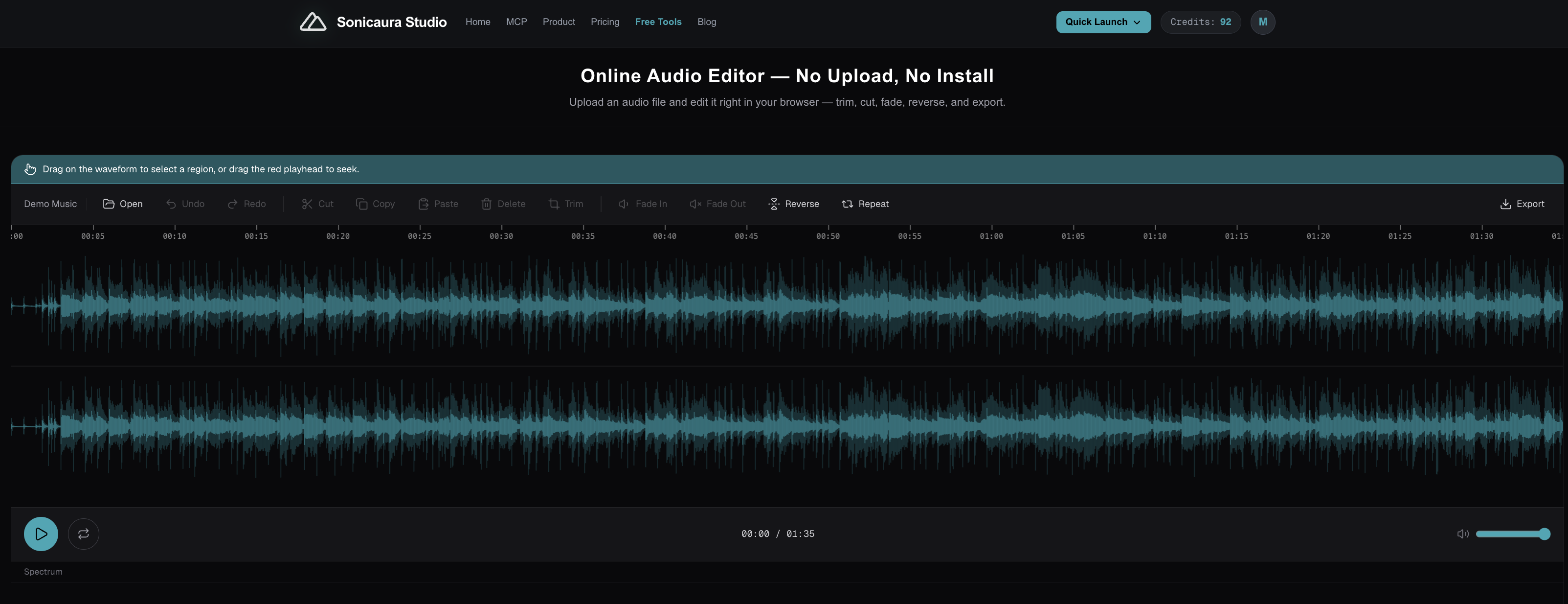
Navigate to the SonicAura Studio Online Audio Editor. You will see a sleek, dark interface with a waveform display. Click the "Open" button in the toolbar to select an audio file from your computer. The waveform will load instantly, allowing you to visualize the entire track.
2. Trim and Cut for the Perfect Length
Whether you need to remove a long intro or cut out a mistake, the Trim and Cut tools are essential.
- Trim: Select the region you want to keep and click "Trim" to discard everything outside the selection.
- Cut: Highlight a specific section of the waveform and click "Cut" to remove it entirely, shifting the remaining audio together.
3. Polish with Fade In and Fade Out
Abrupt starts and stops can ruin a listening experience. Use the Fade In and Fade Out buttons to smoothly increase or decrease the volume at the beginning or end of your track. This is perfect for creating ringtones, podcast intros, or smooth transitions.
4. Get Creative with Reverse
Want to experiment with a reversed audio effect? Simply select a section (or the whole track) and click "Reverse". The waveform will flip horizontally, and the audio will play backward. It is a great way to add a unique touch to your music.
5. Export Your Finished Track
Once you are happy with your edits, click the "Export" button in the top right corner. Your edited audio file will be generated and saved directly to your device. Because the processing happens locally, the export is fast and secure.
Beyond Basic Editing: AI-Powered Tools
While the browser editor handles your quick cuts and fades, SonicAura Studio also offers powerful AI tools if you need to go deeper. You can separate vocals from instrumentals, remove background noise, or add studio-quality reverb to your tracks using their dedicated AI web tools.
Final Thoughts
You do not need a full digital audio workstation (DAW) to make quick, professional edits. By using SonicAura Studio's online editor, you save time, protect your privacy, and get the job done right in your browser.
Ready to give it a try? Open the tool, load your song, and start editing in seconds.
Ready to try it?
Open the tool in your browser — no install, no signup.
Try the Online Audio Editor Now →