
How to Convert Audio to MIDI and Export with AI:Step-by-Step
If you're a music producer, a remixer, or just someone trying to figure out a song, you know the struggle: you have a great audio track, but you want to change the instrument, fix a wrong note, or remix the melody. You can't do that with an MP3. You need MIDI.
For a long time, turning audio into MIDI meant sitting down with your keyboard and playing along, note by note. It was slow, frustrating, and required a good ear.
But AI has changed the game. Now, you can extract the exact notes, timing, and even the dynamics of a performance from an audio file in seconds.
What is Audio-to-MIDI Conversion?
First, let's clear up the confusion. Audio files (like MP3 or WAV) are recordings of sound waves. MIDI files are a set of instructions—they tell a virtual instrument what note to play, how hard to press it, and how long to hold it.
When you use AI to convert audio to MIDI, you aren't extracting the original sound. You are extracting the performance. The AI listens to the audio, detects the pitch and timing of the notes, and writes them out as MIDI data.
Why Use AI for MIDI Extraction?
- Save Hours of Time: Stop manually transcribing. The AI does the heavy lifting in seconds.
- Unlock Remixing: Need the bassline of a song for your own track? Extract it to MIDI and slap on your favorite synth.
- Fix Mistakes: If a vocal performance is slightly out of tune, converting it to MIDI lets you adjust the pitch in your DAW perfectly.
- Learn Songs Faster: Extract the guitar chords or piano melody to see exactly what the musician was playing.
The Biggest Secret: Don't Use a Full Mix
Here is the most important tip for getting good results. If you feed a full, complex song (with drums, vocals, bass, and guitars all mashed together) into a MIDI extractor, the AI will get confused. It will try to turn drum hits into piano notes and guess the vocals incorrectly.
The secret is to use "Stems."
If you upload a clean, isolated track—like just a guitar riff, a bassline, or a piano melody—the AI can hear every note perfectly. Many modern tools, like Sonicaura, combine Stem Separation with MIDI extraction. You upload a song, separate the guitar track, and then convert that clean stem to MIDI.
Step-by-Step: How to Export Your MIDI
- Choose Your Instrument: Open the AI MIDI Converter. Select whether you are trying to extract Guitar, Bass, Piano, or Drums.
- Upload Your Audio: Drag and drop your audio file. For the best results, upload an isolated stem rather than the full mix.
- Let the AI Work: The AI will analyze the pitch and rhythm of your file. This usually takes less than a minute.
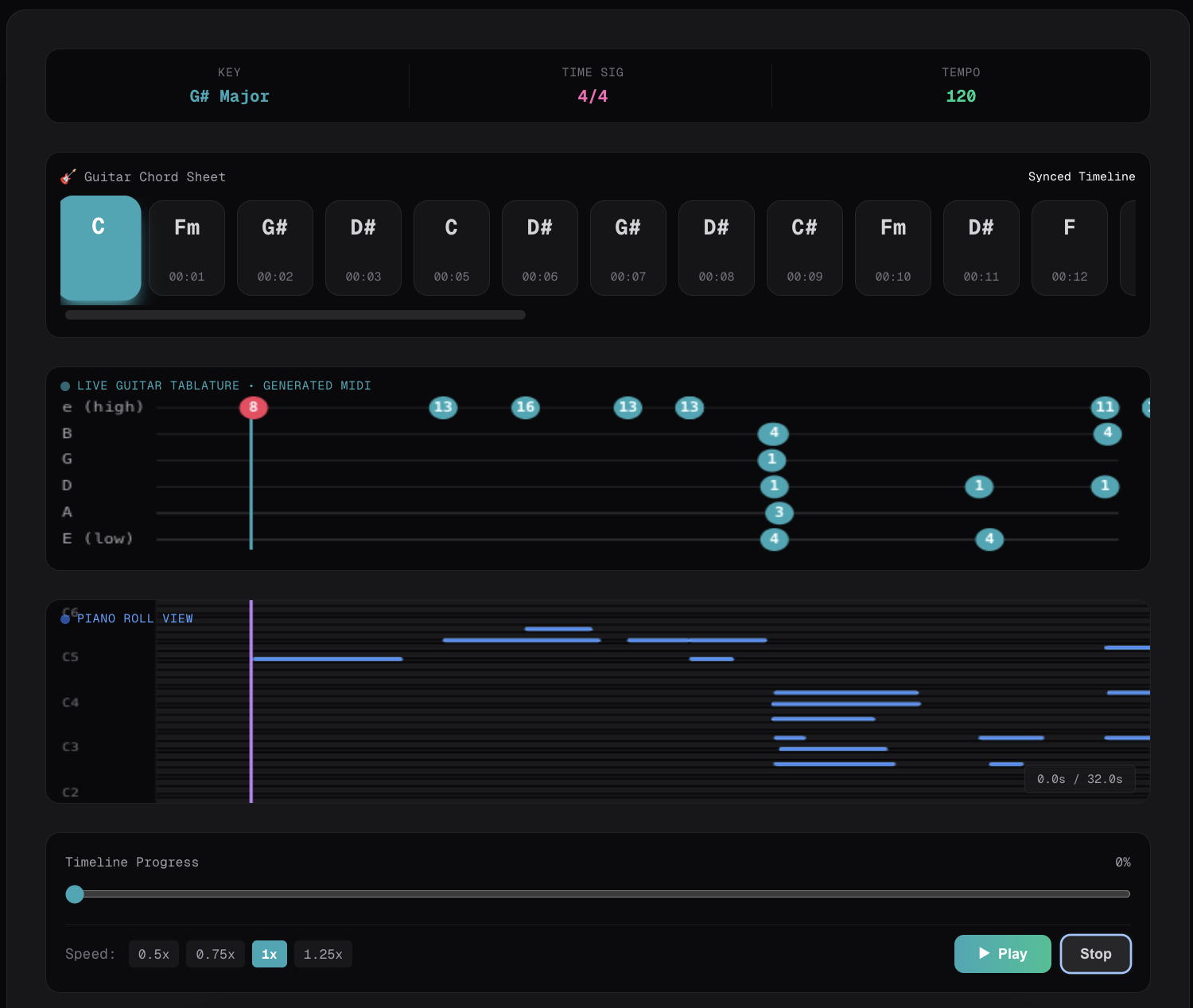
- Preview the Notes: Once it's done, you'll see an interactive Piano Roll and Guitar Tablature. Press play to hear a synthesized preview and make sure the notes match what you hear in your head.
- Download the .mid File: If everything looks good, click download. You can now drag that
.midfile directly into Ableton, Logic Pro, FL Studio, or any other DAW. Assign it to a virtual instrument, and boom—you've just turned a recorded audio file into an editable track.
Final Thoughts
AI has made transcribing music easier than ever. Whether you want to pull the chords from a classic rock song or remix the bassline from a new pop hit, AI audio-to-MIDI tools are the fastest way to get the job done.
Stop guessing—let the AI extract the notes and get back to making music.
Ready to try it?
Open the tool in your browser — no install, no signup.
Try Sonicaura's AI MIDI Converter →