
Using Guitar Workspace to Extract Guitar Chord and Practice
You love a song. You want the guitar part—the riff, the rhythm chops, the little fills under the vocal—not a generic chord chart someone posted online.
On a finished mix, that guitar is buried. Vocals, keys, bass, and effects all sit on top of it. Learning by ear is slow. Bad tabs waste time. And if you only have the full track, practicing along means fighting the rest of the band in your headphones.
There is a cleaner path: extract the guitar stem first, then practice against that isolated part. AI stem separation makes this realistic in a few minutes. Below is a practical workflow using SonicAura’s Guitar Workspace—from isolation to practice (and optional MIDI export).
Why isolate the guitar before you practice?
Practicing over the full mix trains your ear, but it also hides mistakes. An isolated guitar track gives you:
- Clear timing — hear pick attack and muting without the drum bus washing everything out
- Real voicings — what was actually played, not a simplified chart
- Loop-friendly sections — repeat a two-bar riff without the vocal line distracting you
- A fair difficulty ramp — start with guitar-only, then bring the full mix back when you’re ready
Traditional options (official transcriptions, slowing YouTube, EQ tricks) still help. AI isolation is simply the fastest way to get a usable guitar stem from almost any commercial recording.
The workflow at a glance
| Step | Action | Where in Guitar Workspace |
|---|---|---|
| 1 | Upload the song | Extract Guitar Track |
| 2 | Isolate the guitar stem | Extract Guitar Track |
| 3 | Practice (or learn by ear) on the stem | Practice / your own setup |
| 4 | Optional: chords or MIDI | Extract Chord / MIDI Export |
You do not need every step every time. Many players stop at “clean guitar stem + loop.” Others continue into chord detection or MIDI for a DAW.
Step 1 — Open Guitar Workspace and start Extract
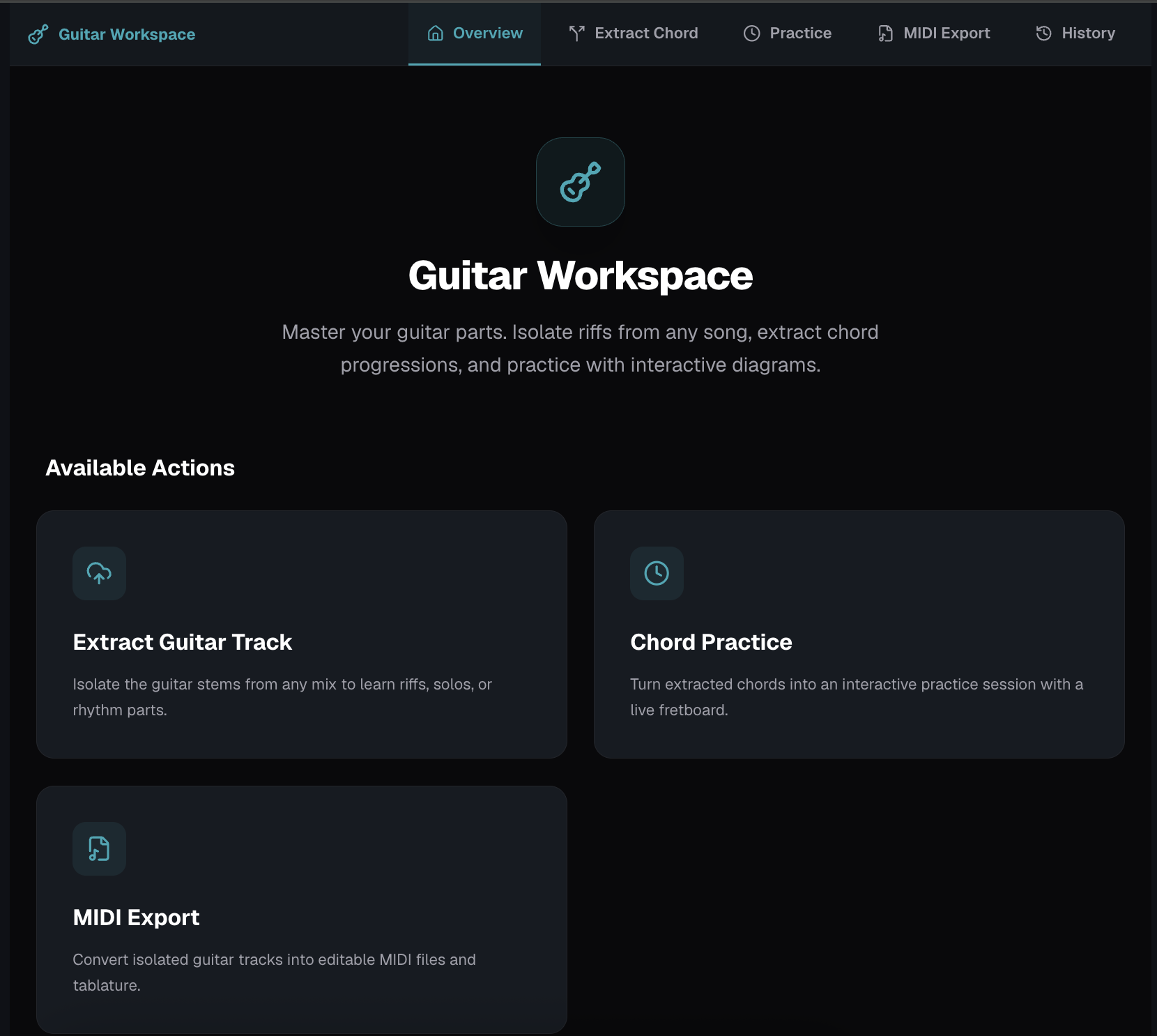
Go to Guitar Workspace and open Extract Guitar Track.
This is the stem tool focused on guitar: it aims to pull guitar (and guitar-like) energy out of a full mix so you can hear the part on its own.
Step 2 — Upload your song and run isolation
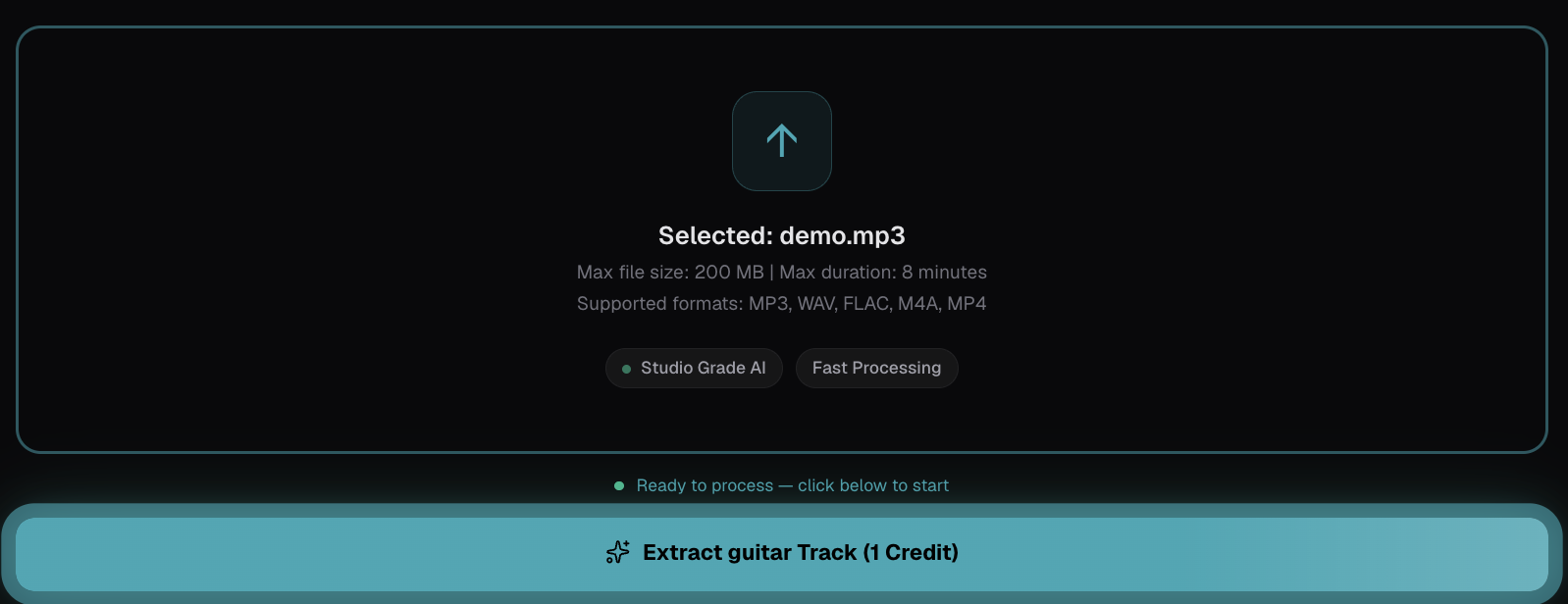
- Upload an MP3, WAV, or other common audio file of the song.
- Start the guitar extraction job.
- Wait for processing (time depends on length and server load).
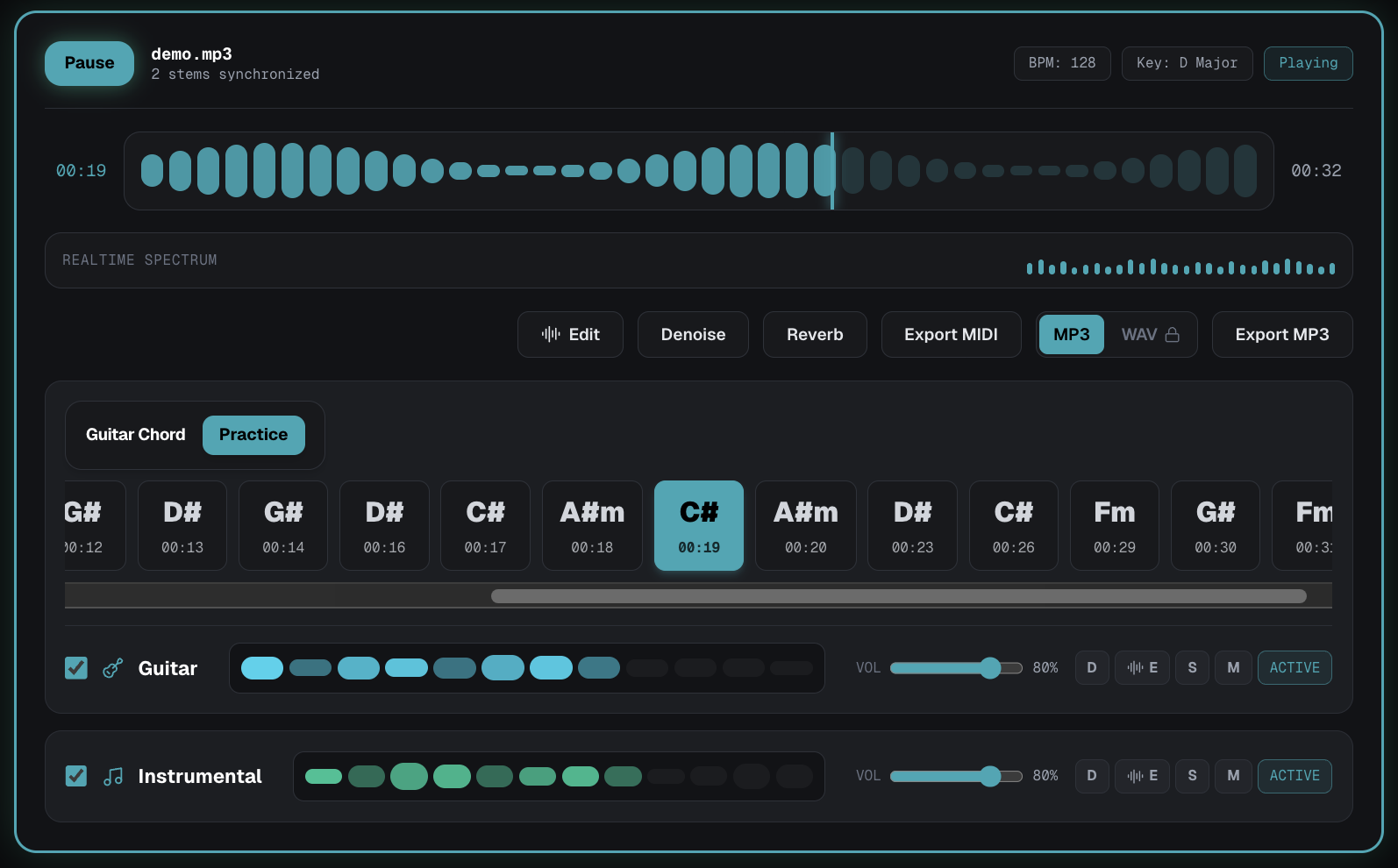
- Preview the isolated guitar stem and download or send it into the rest of the workspace.
Tips for better results
- Prefer a clean stereo mix (avoid heavy live audience noise when possible).
- Extremely dense metal or wall-of-sound productions are harder; you may still hear bleed—use the stem as a guide, not a perfect multitrack.
- If the “guitar” stem picks up synth leads, treat it as a practice reference and focus on the phrases you care about.
Step 3 — Practice along with the isolated part
Once you have the guitar stem:
- Loop the section you’re learning (intro riff, verse pattern, solo phrase).
- Play along at full speed, or slow the file in your player if needed.
- When the part is solid, switch back to the full song and test yourself in context.
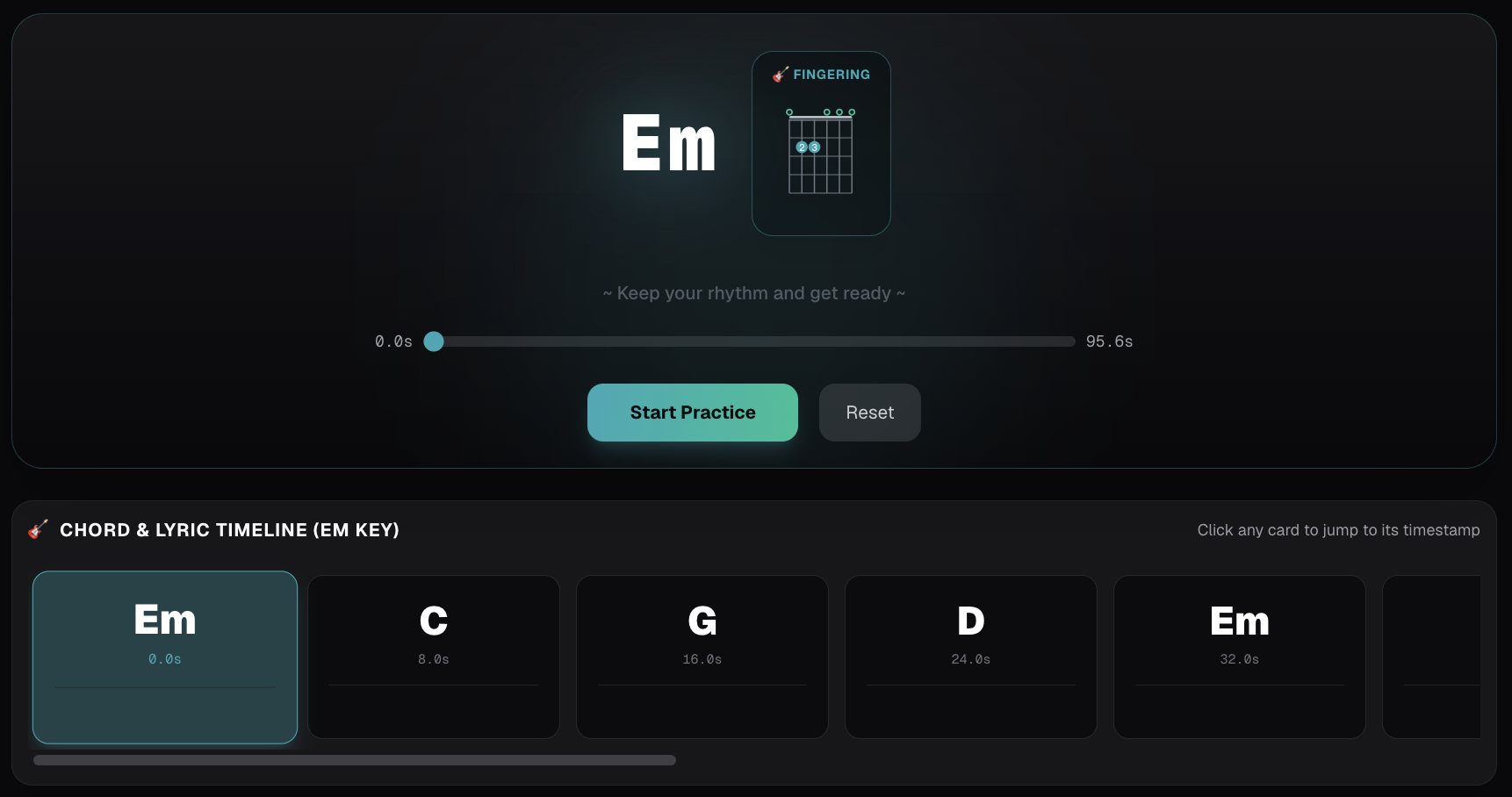
If you use SonicAura’s Chord Practice tools in the same workspace, you can also attach chord timelines and fretboard diagrams for songs where harmony matters more than a single riff line.
A simple practice loop
- Isolate guitar.
- Mark 4–8 bars.
- Repeat until your hands are automatic.
- Play those bars over the original mix.
- Move to the next section.
That loop is more effective than scrolling tab sites for an hour.
Step 4 — Optional: chords and MIDI
Chords
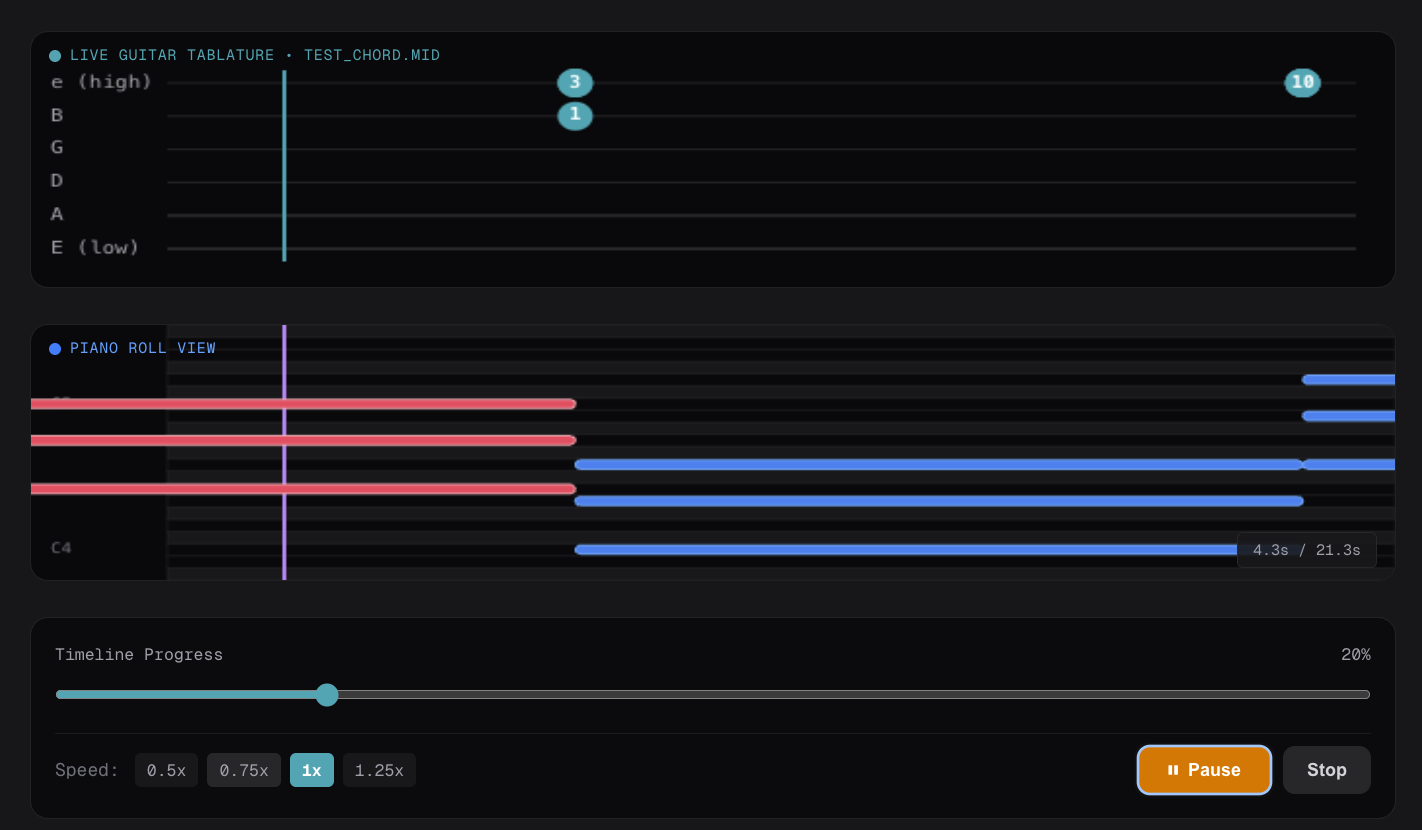
When you need names and shapes—not only the sound of the part—run chord extraction on the song (or on a cleaner stem when it helps). Use the interactive practice view to step through changes with diagrams.
This pairs well with the older “extract chords and practice along” workflow; isolation simply gives your ear a clearer source.
MIDI export
For DAW users, MIDI Export can turn an isolated guitar-oriented part into a starting MIDI clip for editing, quantizing, or rewriting. Expect to clean notes by hand—AI MIDI is a sketch, not a finished score.
When AI isolation struggles
Be honest about limits:
- Quiet or side-panned guitars may come through thin.
- Heavy FX (amp sims, delays, massive reverb) can confuse the model.
- Two guitars panned L/R might merge into one stem.
- Live recordings with crowd noise reduce clarity.
Even a imperfect stem is often better than the full mix for learning a part. Combine it with your ear and, when needed, a trusted tab for structure.
FAQ
Do I need to install software?
No. The Guitar Workspace runs in the browser as part of SonicAura Studio.
Is the isolated guitar copyright-free to release?
No. Isolation is for practice and learning. Releasing or monetizing copyrighted stems is not allowed. Use official stems or licensed material when you distribute.
Can I extract bass or drums the same way?
Stem tools can target other instruments in the broader studio; this guide focuses on the guitar path inside Guitar Workspace.
Should I extract chords from the full mix or the guitar stem?
Full mix is the usual default for chord detection. If the arrangement is very dense, trying a guitar-focused stem can sometimes reduce confusion—compare both when results look off.
What file types work?
Common formats such as MP3 and WAV are supported; check the upload UI for the current list.
Put it together
- Open Guitar Workspace.
- Use Extract Guitar Track on the song.
- Loop and practice the isolated part.
- Add Chord Practice or MIDI Export only if you need them.
You stay focused on the guitar that was actually recorded—not a simplified guess from a random chart.