
How to Add Reverb to a Song Online for Free (Browser-Based Guide)
Reverb is one of the fastest ways to make dry recordings sound more natural, polished, and professional. Whether you are mixing vocals, acoustic guitar, drums, or a full song, a free online reverb tool can help you add space and depth without installing plugins or opening a DAW.
In this guide, you will learn how to add reverb to a song online for free using Sonicaura Studio's Online Sound Reverb Tool. The tool runs directly in your browser, requires no signup, and processes your audio locally on your device.
What Is Reverb and Why Does It Matter?
Reverb, short for reverberation, simulates the acoustic space around a sound. When you sing in a room or play an instrument in a hall, sound waves reflect off walls, ceilings, and floors. Those reflections reach your ears after the direct sound, creating a sense of space.
Without reverb, recordings can sound flat, dry, and disconnected. Adding the right amount of reverb can:
- Place vocals or instruments in a believable space
- Help vocals sit naturally in a mix
- Add warmth, depth, and atmosphere
- Blend separate tracks together more smoothly
- Make podcast voiceovers and voice recordings feel less sterile
The key is moderation. The best reverb is often the kind the listener feels but does not consciously notice.
Why Use a Browser-Based Reverb Tool?
A browser-based reverb tool is ideal when you want quick results without a complicated setup. The Sonicaura Studio reverb tool offers:
- No download or signup required
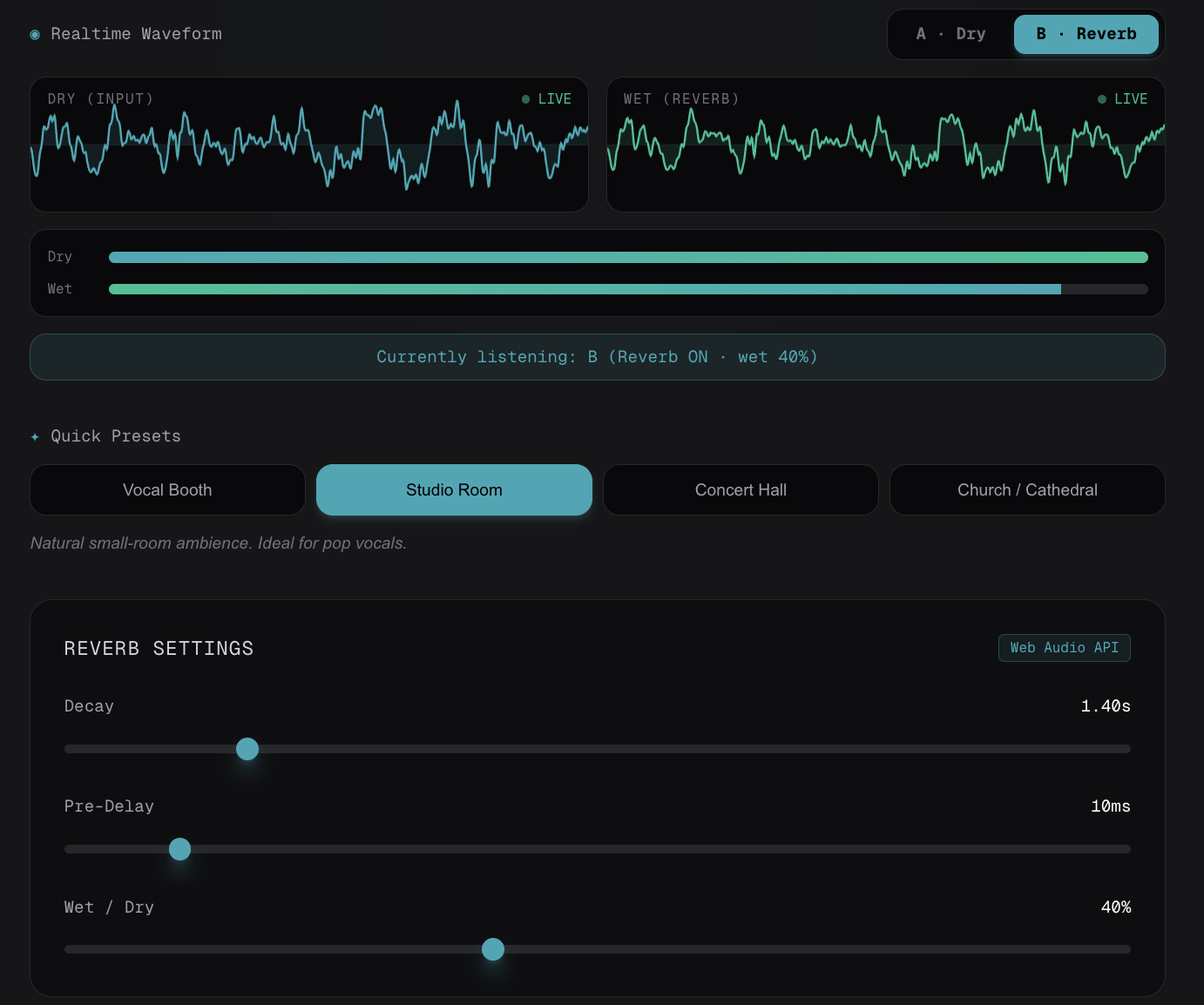
- Four ready-to-use presets: Vocal Booth, Studio Room, Concert Hall, and Church / Cathedral
- Three fine-tuning controls: Decay, Pre-Delay, and Wet/Dry
- Real-time waveform visualization
- Instant A/B comparison between dry and reverb-processed audio
- One-click WAV export
- Local processing in your browser using the Web Audio API
Because the audio is processed locally, your file is not uploaded to a server. You can open the tool, process your recording, and export it without creating an account.
Step-by-Step: How to Add Reverb to a Song Online
Step 1: Upload Your Audio File
Open the Online Sound Reverb Tool and drag your audio file into the upload area, or click Browse Files to select a file from your device.
The tool supports MP3, WAV, M4A, and FLAC files up to 500 MB. For the best results, use a high-quality source file. Lossless formats such as WAV or FLAC preserve more detail, which gives the reverb processor richer material to work with, especially for longer reverb tails.
Step 2: Choose a Reverb Preset
Start with one of the four built-in presets. Each preset is designed for a different type of sound and acoustic space.
| Preset | Best For | Character |
|---|---|---|
| Vocal Booth | Podcasts, voiceover, tight pop vocals | Short, dry, intimate |
| Studio Room | Pop vocals, acoustic instruments, guitars | Natural small-room ambience |
| Concert Hall | Orchestral music, cinematic tracks, dramatic vocals | Deep, spacious, cinematic |
| Church / Cathedral | Choirs, ambient music, meditative audio | Long, ethereal, majestic tail |
Click a preset to apply its decay, pre-delay, and wet/dry settings instantly. You can then adjust the controls to fit your song.
Step 3: Fine-Tune Decay, Pre-Delay, and Wet/Dry
After choosing a preset, use the three main controls to shape the reverb.
Decay controls how long the reverb tail rings out before fading away. A longer decay creates the impression of a larger space, such as a hall or cathedral. A shorter decay sounds tighter and more intimate, which works well for vocals and speech.
Pre-Delay sets the gap between the original dry signal and the start of the reverb. A longer pre-delay, often around 20–50 ms, helps keep the initial attack of a vocal or instrument clear while still adding space behind it.
Wet/Dry blends the original dry signal with the reverb-processed wet signal. Start around 30–40% wet on individual tracks, then adjust until the reverb sounds natural. For a full song mix, use less reverb and compare carefully, because reverb on an entire mix can smear transients and blur the arrangement.
A good rule of thumb: if you can clearly hear the reverb effect itself, you probably have too much.
Step 4: Compare Dry and Reverb With A/B
Before exporting, use the A/B comparison feature to hear the original recording and the processed version at the same playback position and volume.
- Click A · Dry to hear the original unprocessed audio.
- Click B · Reverb to hear the reverb-processed version.
This is important because louder audio often sounds "better" at first. The A/B switch keeps the comparison fair so you can judge whether the reverb actually improves the recording.
Step 5: Export Your Processed Audio
When you are happy with the result, click Export WAV to download your processed audio as a 16-bit WAV file. WAV files are compatible with major DAWs, video editors, and streaming workflows, including Ableton, FL Studio, Logic Pro, Audacity, and most video editing software.
That is the full workflow: upload, choose a preset, fine-tune, compare, and export — all in your browser.
Tips for Adding Reverb to a Song
Adding reverb to a complete song is possible, but it usually works best when applied thoughtfully.
- Process stems instead of the full mix when possible. Reverb on vocals, drums, or guitars separately gives you more control than adding reverb to an entire song.
- Avoid heavy reverb on bass. Low-frequency reverb can make a mix sound muddy.
- Keep vocals intelligible. Use pre-delay and a shorter decay for speech-heavy content.
- Use reverb to create depth, not to hide problems. It should support the mix, not wash it out.
- Compare often. Use the A/B button to make sure the reverb is improving the sound rather than simply making it louder or blurrier.
If you want to add reverb to a full song mix, use a subtle setting and check the result on headphones and speakers. For cleaner results, isolate vocals or instruments first, then apply reverb to those individual parts.
When Should You Use Reverb?
Reverb works well on:
- Lead and backing vocals
- Snare drums and toms
- Acoustic guitars
- Pianos and keyboards
- Subtle podcast or voiceover room ambience
- Drum overheads or room mics
Use reverb sparingly or avoid it on:
- Bass tracks, where low-frequency reverb can create muddiness
- Full mixes, where too much reverb can blur everything together
- Dialogue-heavy podcasts, where excessive reverb can reduce intelligibility
Frequently Asked Questions
Do I need audio engineering experience to use this tool?
No. The presets are designed to sound good out of the box. Most users can get a usable result by selecting a preset, making small adjustments, and exporting. The decay, pre-delay, and wet/dry controls are there for fine-tuning when you want more control.
Are my recordings uploaded to a server?
No. The reverb processing runs in your browser using the Web Audio API. Your audio file is not uploaded to or stored on an external server. When you close the tab, the file is gone from your device as well.
Which file formats are supported?
The tool supports MP3, WAV, M4A, and FLAC files up to 500 MB. For the best results, use high-quality source files, especially when working with long reverb tails.
What does the A/B switch do?
The A/B switch instantly toggles between the dry original signal and the wet reverb-processed signal at the same playback position and volume. This helps you compare the two versions fairly.
Can I add reverb to a full song mix?
Yes. The tool works on any audio file, including vocals, instruments, stems, and full mixes. However, adding reverb to a full mix affects every element at once and can smear the mix together. It usually works best on individual tracks, stems, or submixes.
Is the tool really free?
Yes. The online sound reverb tool is free to use with no hidden fees, no watermarks, and no registration required. You can export your processed audio as a WAV file without limitations.
Try the Free Online Reverb Tool
Ready to try it?
Open the tool in your browser — no install, no signup.
Try the Free Online Reverb Tool →