
Vocal and Instrumental Extraction Demo in ChatGPT via MCP
Watch an AI Agent (powered by Deepseek Flash) autonomously call the Sonicaura MCP Server to isolate vocals and instrumental from a local file. No manual UI interaction required.
Zero Config Setup
No manual uploads or complex API wrappers. Just plug in the MCP Server and let your AI agent do the work.
MCP Tool Calling
Watch the agent reason and trigger the isolate_vocals tool via MCP.
Automated Workflow
No UI, no dragging, no clicking. The AI agent handles the heavy lifting hands-free.
How to Connect ChatGPT to Sonicaura MCP
Follow these 3 simple steps to configure your MCP server.
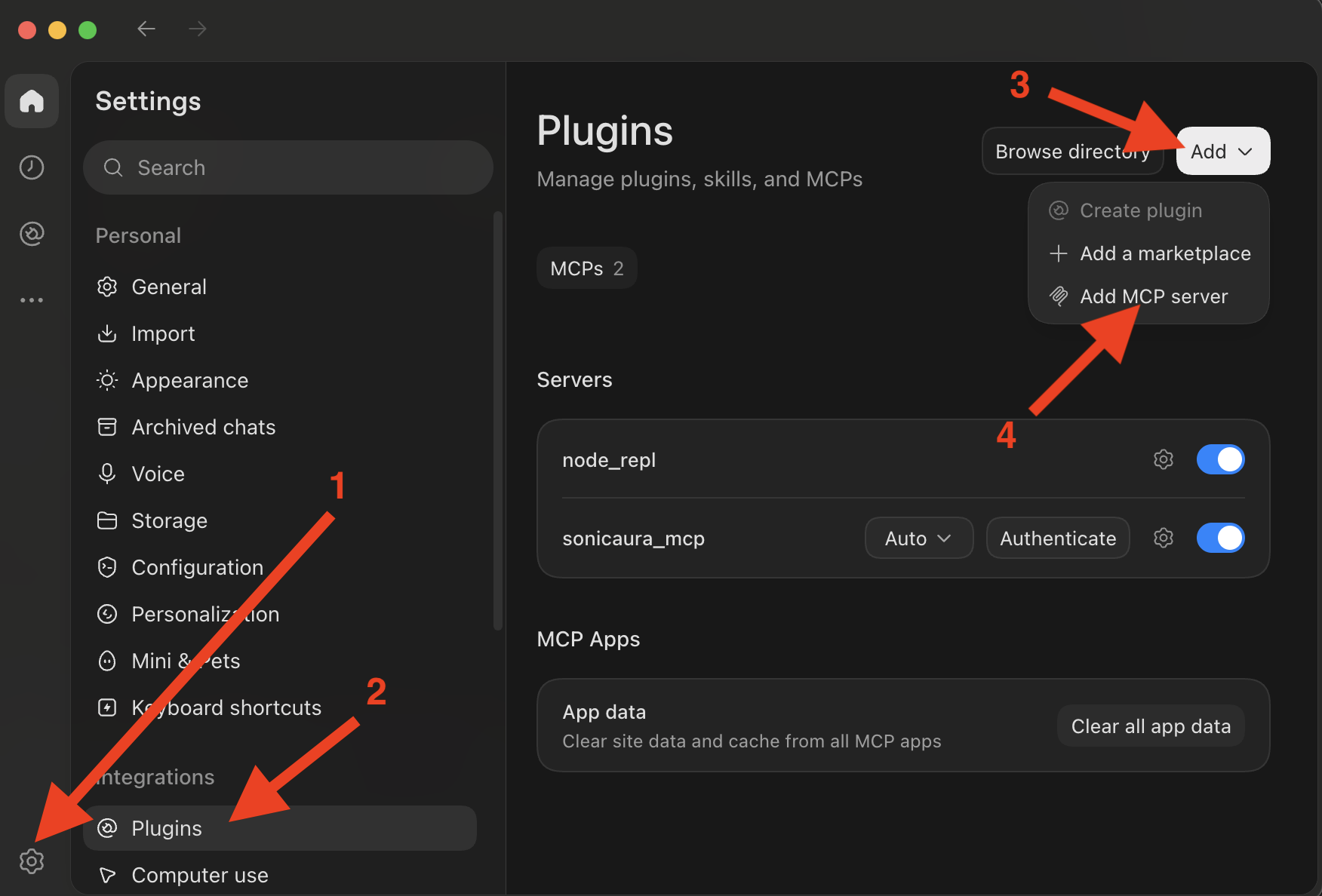
Open Settings
Launch ChatGPT, open the Settings menu, and select Plugins from the sidebar. Click the Add button and choose Add MCP server.
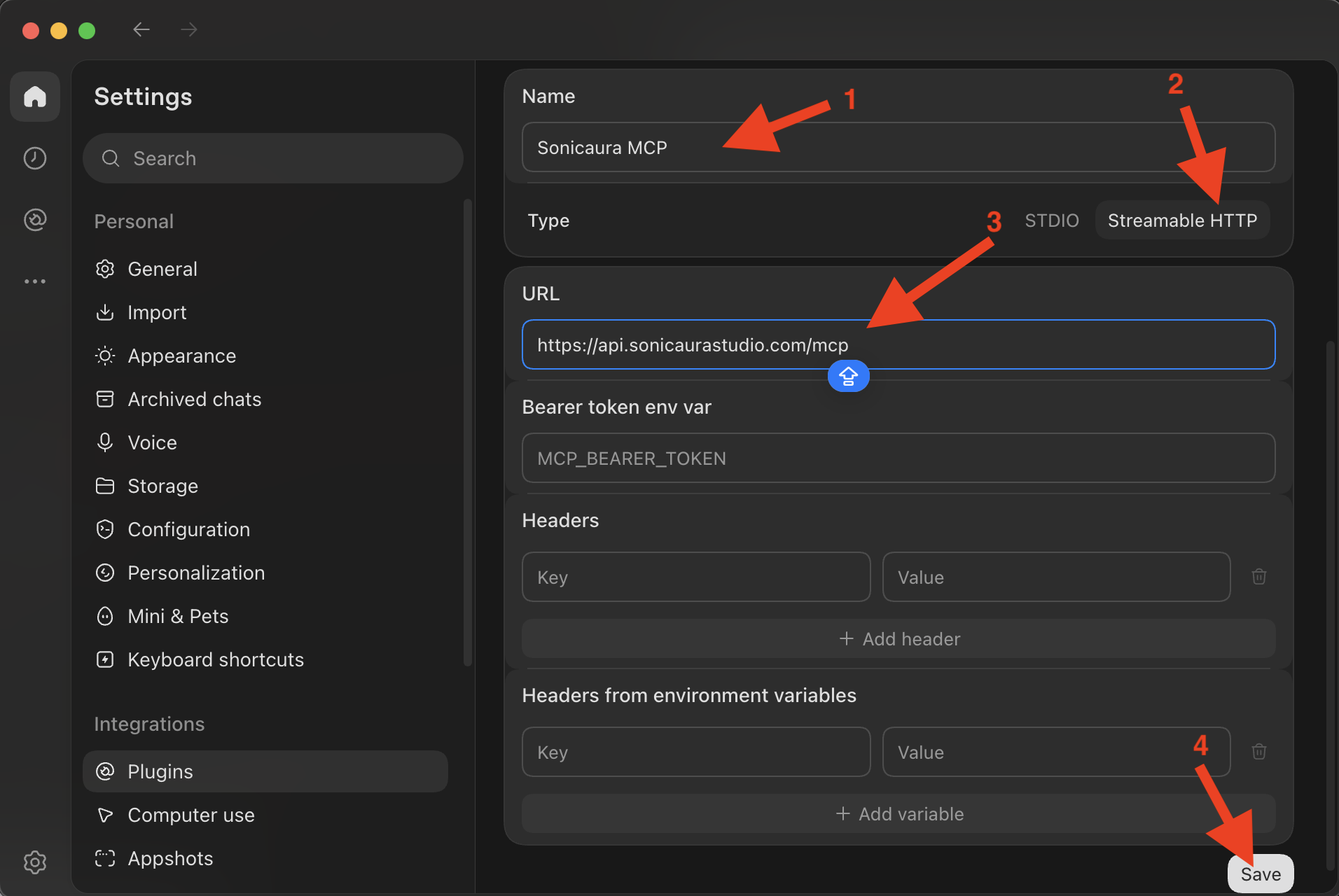
Enter MCP Details
Fill in the required configuration fields:
- Name: Sonicaura MCP
- Type: Streamable HTTP
- URL: https://api.sonicaurastudio.com/mcp
Leave the Bearer token and Headers fields blank for now.
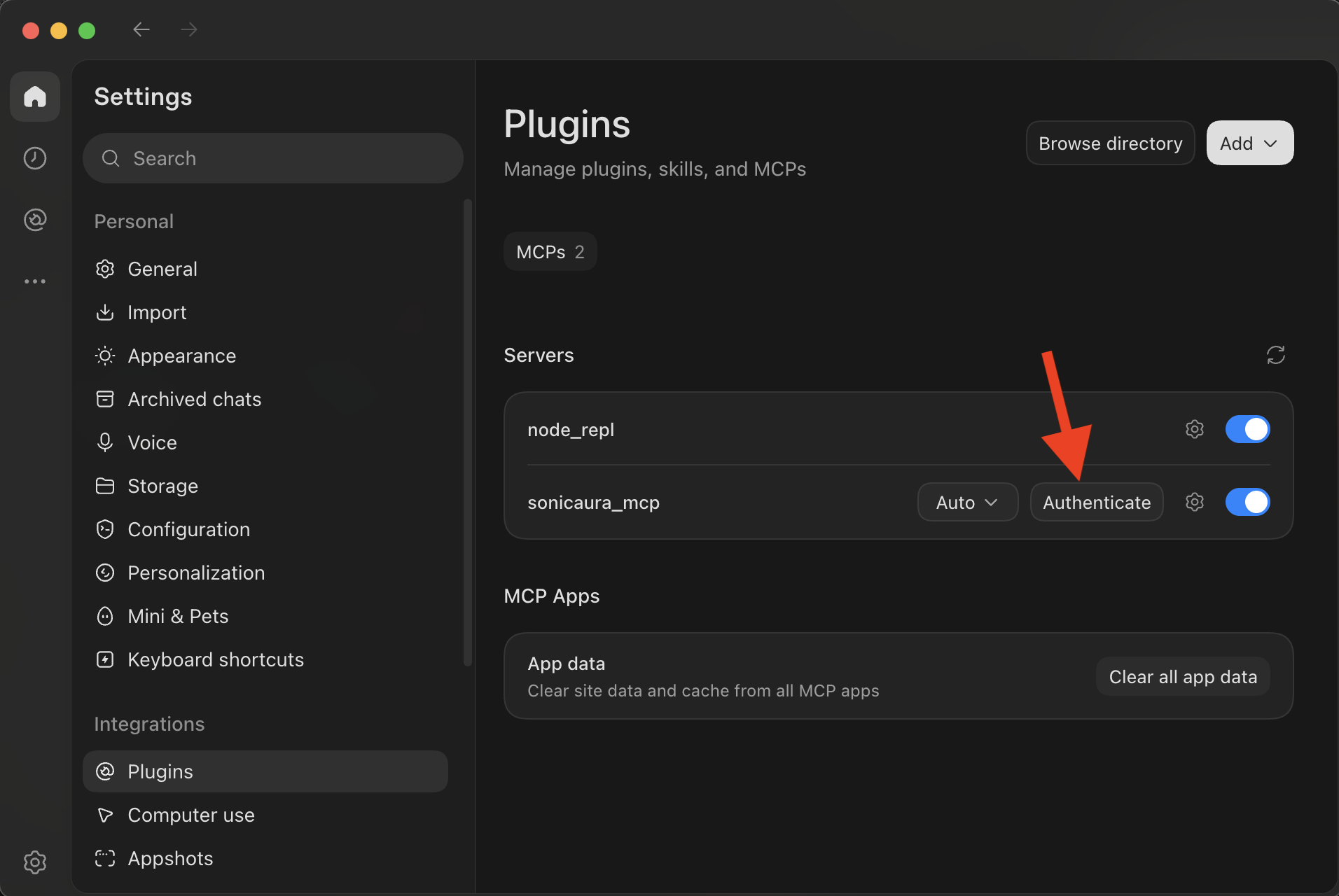
Save & Authenticate
Click Save to add the server. Once added, click the Authenticate button next to the Sonicaura MCP server to finish the connection.
Frequently Asked Questions
MCP (Model Context Protocol) is an open standard that allows AI agents to securely connect to external tools and data. It enables ChatGPT to run complex audio processing tasks (like vocal isolation) automatically, without needing custom API wrappers.
No. You only need a Sonicaura API key to authenticate the MCP connection. Once connected, you can use your existing ChatGPT Plus or Enterprise subscription to interact with the agent.
Yes. While the MCP connection itself has no limits, the underlying Sonicaura audio processing API supports files up to 200MB, which is roughly 2 hours of standard MP3 audio.
Absolutely. The audio stems and MIDI files generated by Sonicaura Studio are 100% royalty-free and can be used in commercial projects.
Ready to integrate your own agents?
Grab your API key and start building automated audio workflows today.