
Vocal and Instrumental Extraction Demo in Workbuddy via Audio Processing MCP
Watch the AI Agent Workbuddy autonomously call the Sonicaura MCP Server to isolate vocals and instrumentals from a local file — no manual UI interaction required. This video also includes a step-by-step guide on how to connect MCP to Workbuddy.
Zero Config Setup
No manual uploads or complex API wrappers. Just plug in the MCP Server and let your AI agent do the work.
MCP Tool Calling
Watch the agent reason and trigger the isolate_vocals tool via MCP.
Automated Workflow
No UI, no dragging, no clicking. The AI agent handles the heavy lifting hands-free.
How To Connect Workbuddy to the Sonicaura Audio Processing MCP
Follow these five simple steps to set up the connection and start processing.
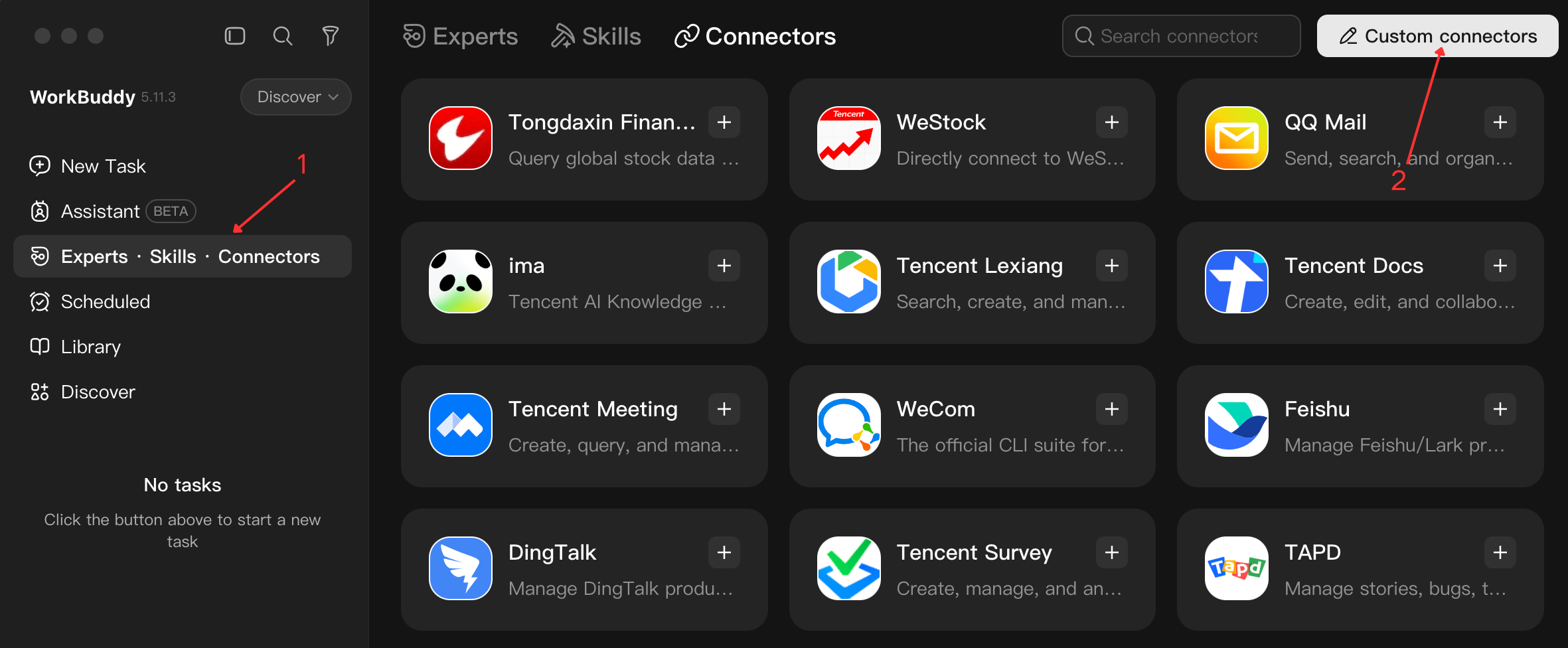
Open Workbuddy then go to Connectors
Launch Workbuddy, click on Experts · Skills · Connectors in the left sidebar. Then click the Custom connectors button in the top right corner.
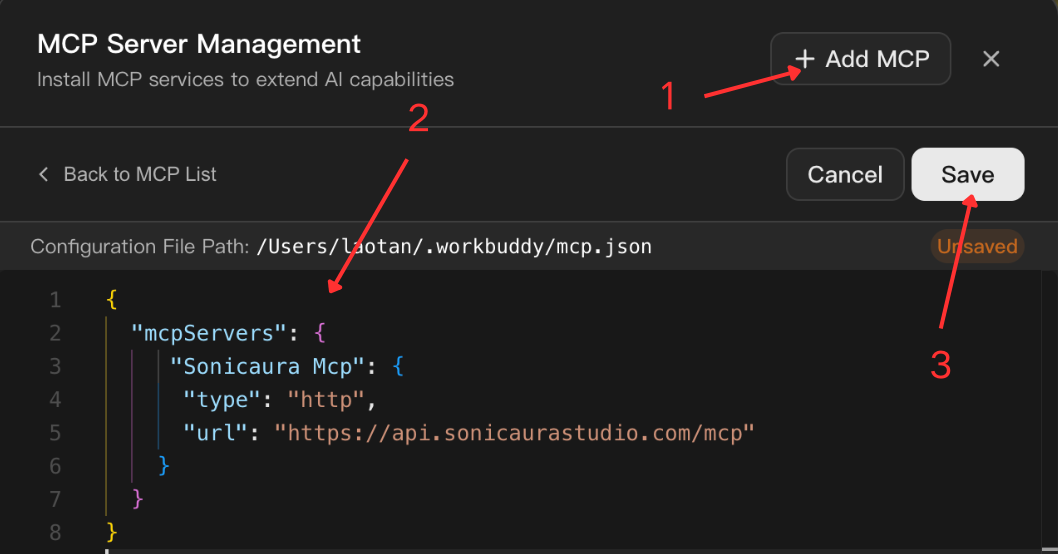
Add MCP & Configure
Click Add MCP, and paste the following JSON configuration into the editor:
{
  "mcpServers": {
    "Sonicaura Mcp": {
      "type": "http",
      "url": "https://api.sonicaurastudio.com/mcp"
    }
  }
}
Click Save in the top right corner.
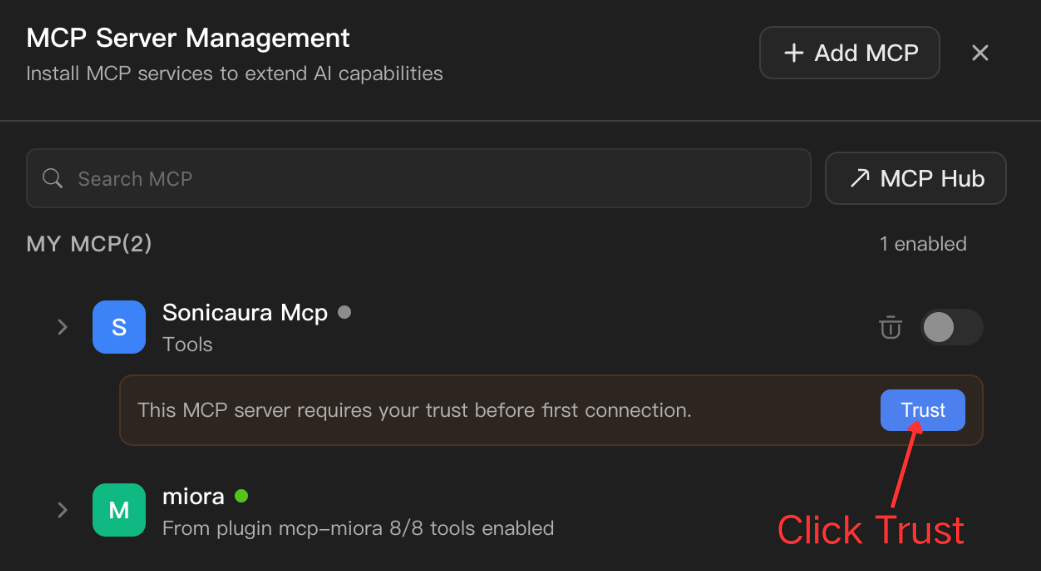
Trust the Server
After saving, go back to the MCP list. Find Sonicaura Mcp, click the Trust button to authorize the connection, and toggle the switch to enable it.
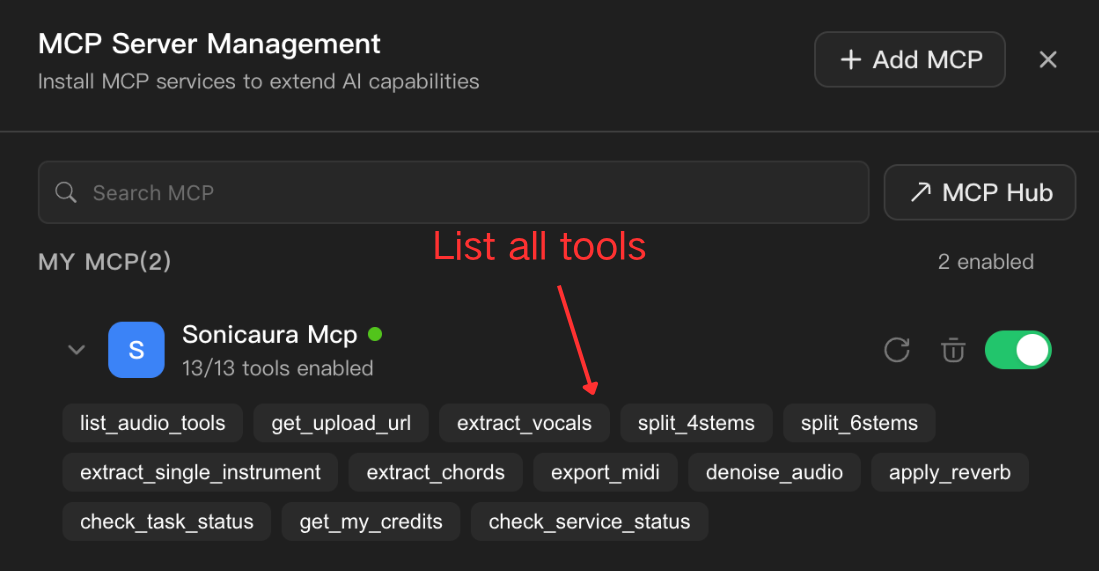
Verify Tools
Once enabled, expand the Sonicaura Mcp panel to view all available tools (e.g., extract_vocals, split_4stems). Workbuddy is now ready to process audio via AI.
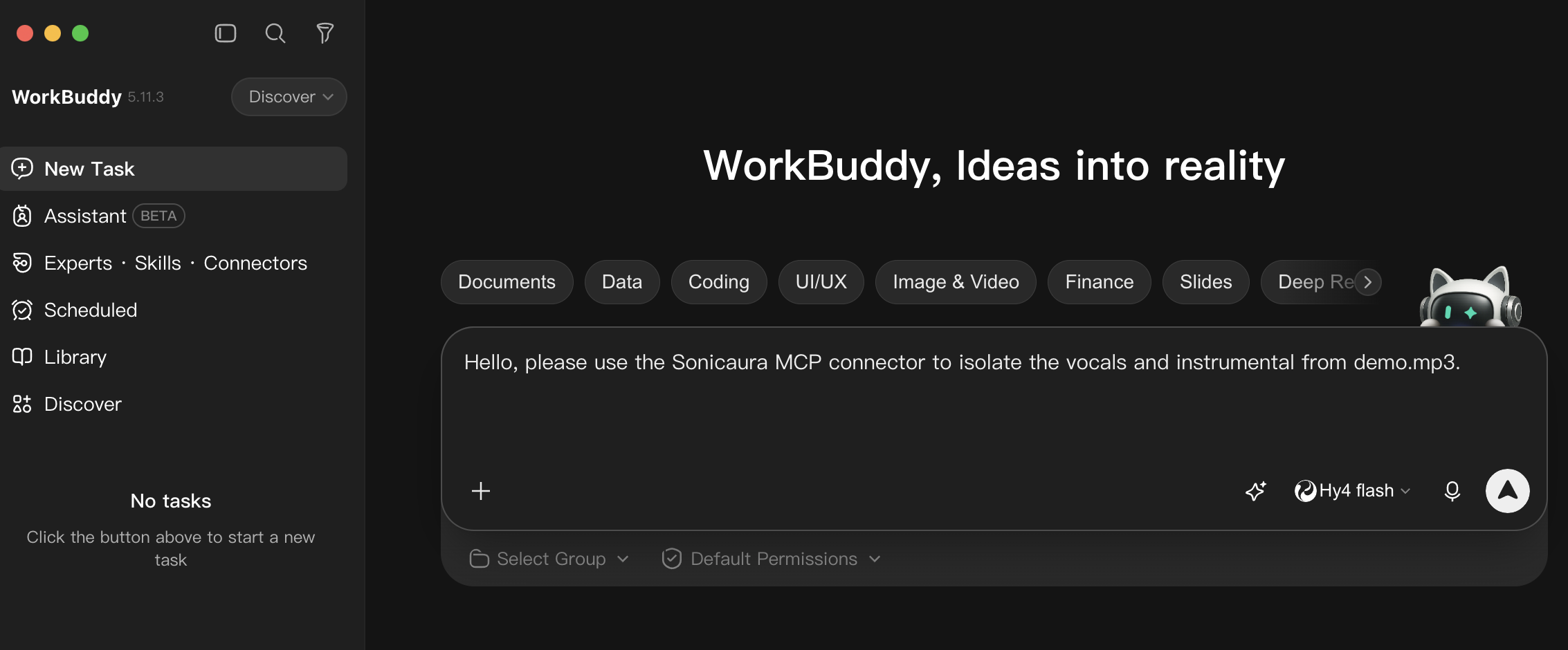
Initiate a Task Request
Return to the main chat interface. Simply type your command in natural language. For example:
"Hello, please use the Sonicaura MCP connector to isolate the vocals and instrumental from demo.mp3."The agent will autonomously call the MCP tools to process your audio file.
Frequently Asked Questions
Workbuddy is an AI workspace that supports custom connectors via a JSON configuration file. By adding the Sonicaura MCP server, Workbuddy's AI agents can directly trigger audio processing tasks like vocal isolation without manual uploads.
Yes, you'll need a Sonicaura API key to authenticate the MCP connection. Once authenticated, you can use your Workbuddy environment to interact with the Sonicaura audio processing tools.
MCP is an open standard that allows AI assistants to securely connect to external tools and data. It acts as a bridge between Workbuddy's AI and Sonicaura's powerful audio separation engine.
The Sonicaura API supports files up to 200MB (roughly 2 hours of standard MP3 audio). The connection through Workbuddy handles the routing seamlessly.
Ready to integrate your own agents?
Grab your API key and start building automated audio workflows today.